
Custom Game Browser

PROJECT SUMMARY
Custom Game Browser was a sizeable project delivered by a relatively small team. We were lucky to have an opportunity to revisit the feature after launch.
Phase 1: Creating and standing up the first version of the Custom Game Browser. Post-launch, I was able to work with user research to get player feedback.
Phase 2: Focused on addressing the research feedback that could create the highest player impact with the lowest engineering effort. Rather than redesigning the entire experience we prioritized targeted changes that could improve usability within the budget of our development scope.
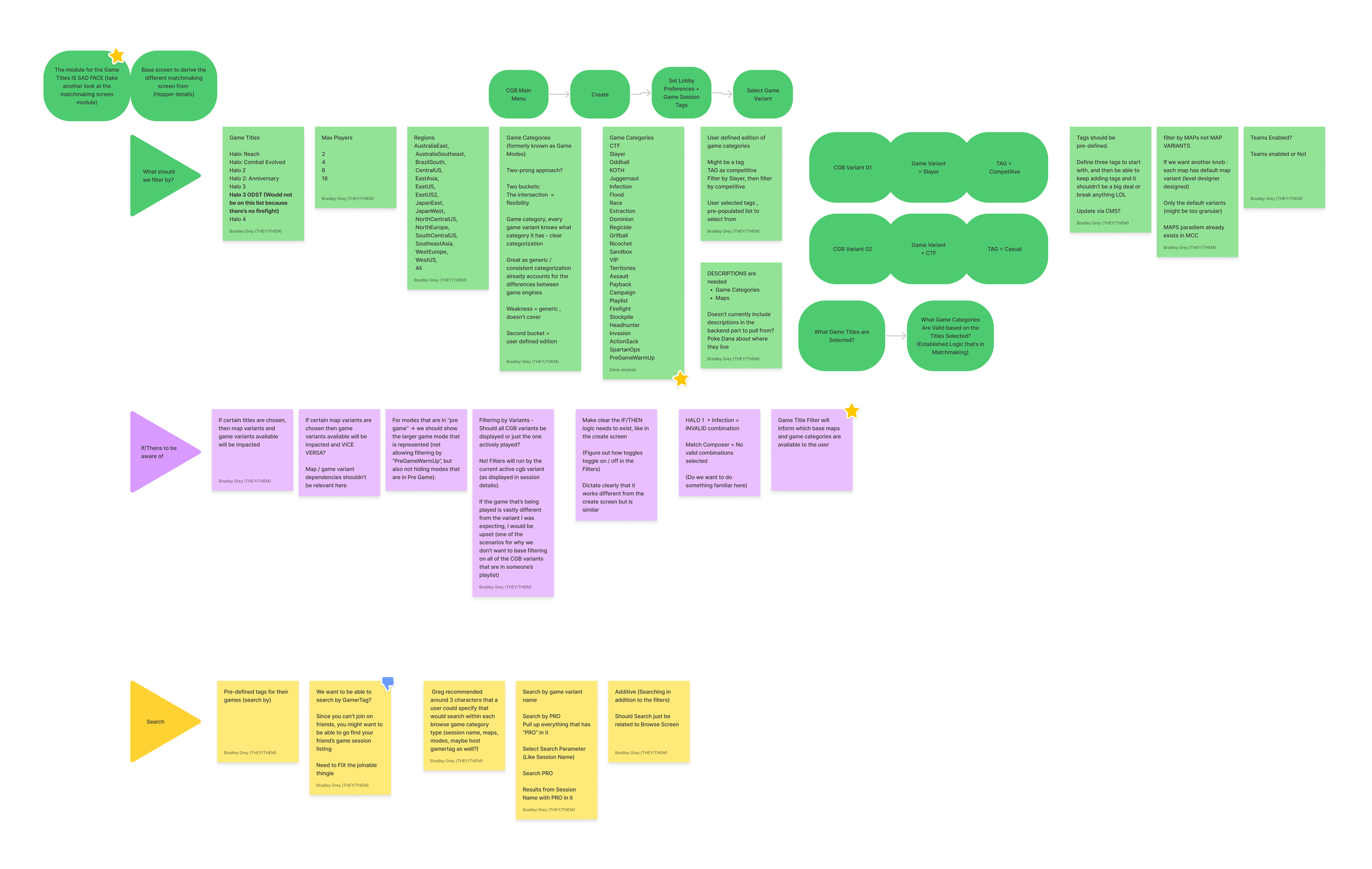

CGB Phase 2: Filter
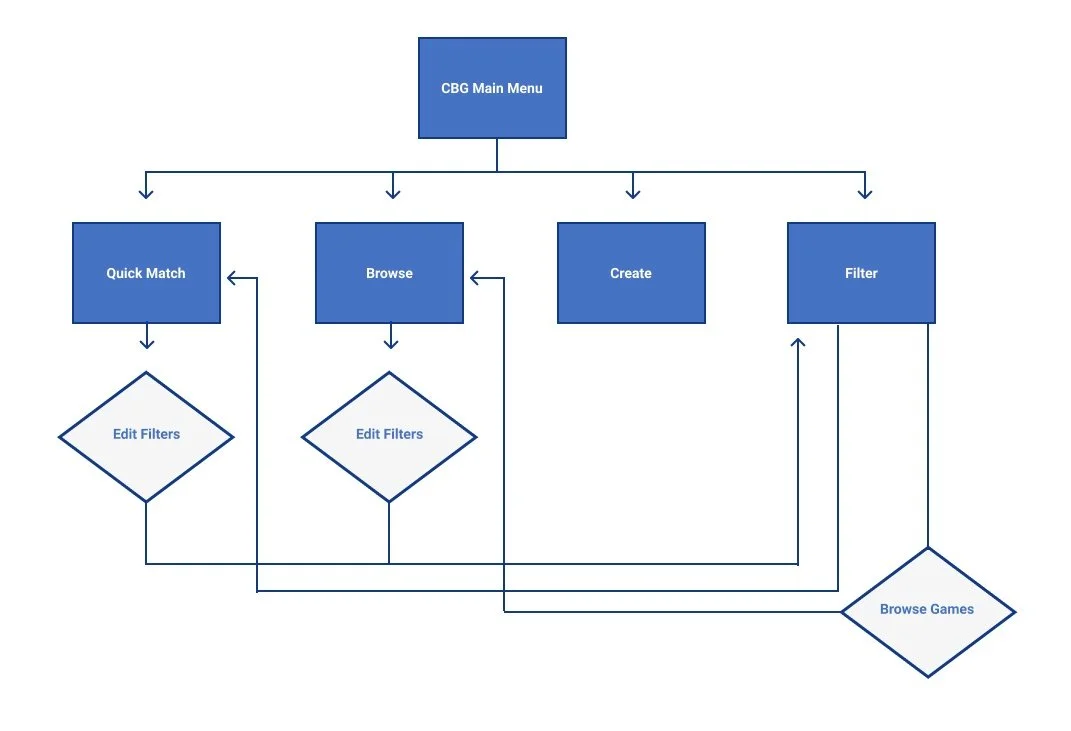
Flows:
Main Menu → Multiplayer Menu → Custom Game Browser (Main Menu) → Filter
Main Menu → Multiplayer Menu → Custom Game Browser (Main Menu) → Quick Match (Searching) → Edit Filters
Main Menu → Multiplayer Menu → Custom Game Browser (Main Menu) → Browse → Edit Filters
Flow Diagram
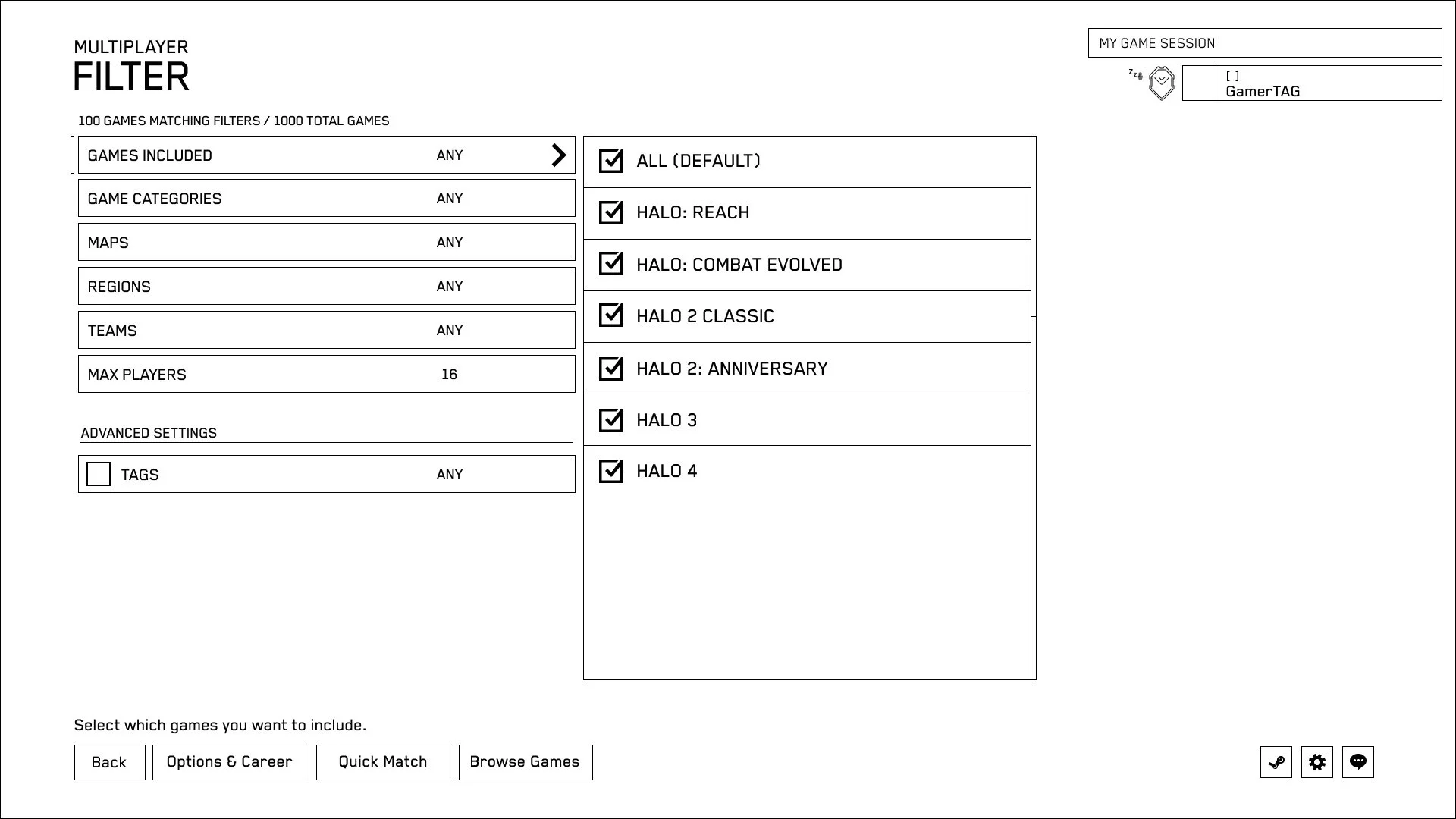
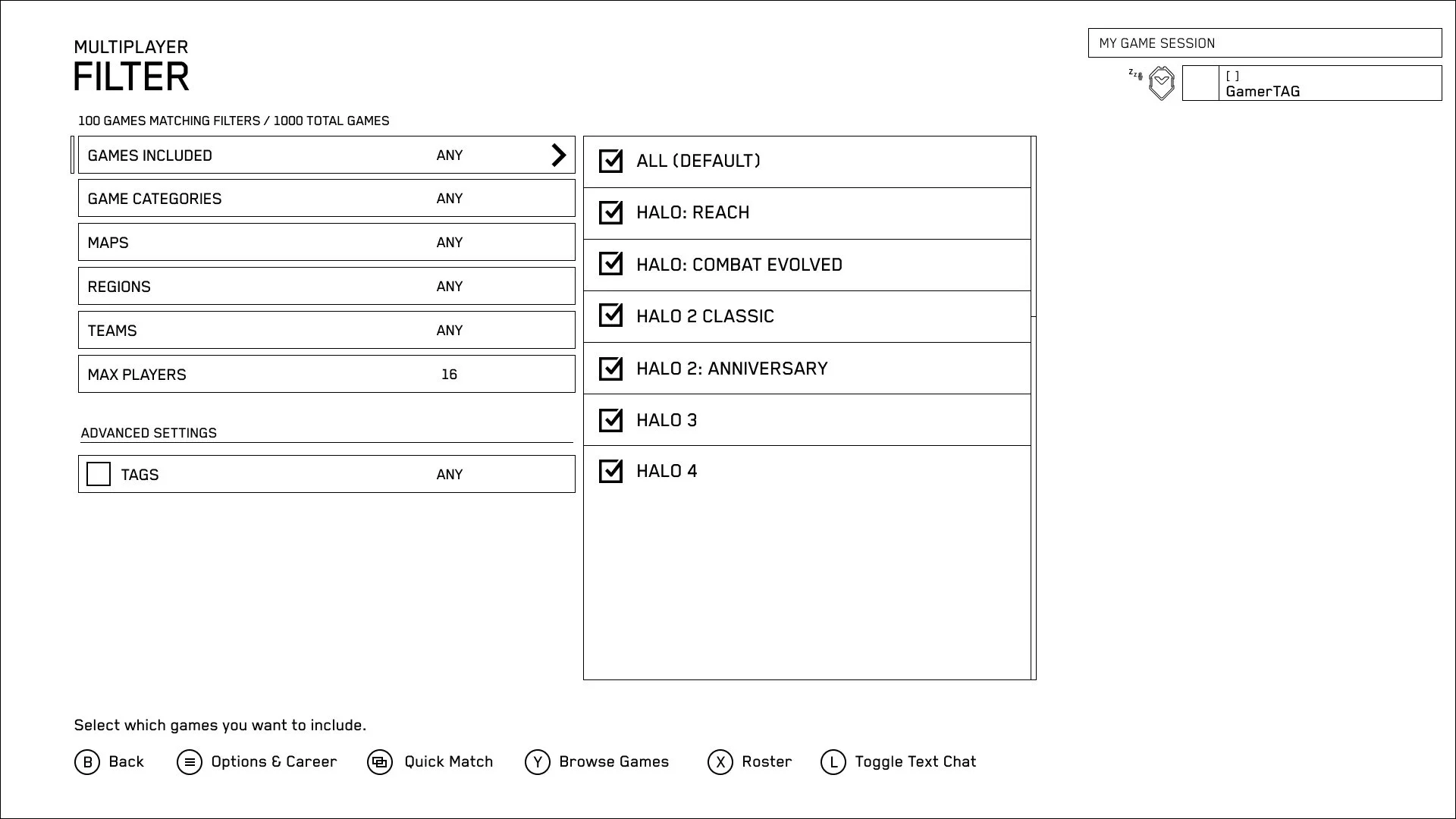
Wireframes for Filter PC/STEAM on the left, XBOX on right
Functionality
When a user clicks on the Filter menu item from the main Custom Game Browser (CGB) menu, they will land on the Filter screen where they can configure their preferences.
Selecting the "Edit Filter" option from the Quick Match or Browse screens will also bring the user to the Filter screen.
Options selected on the Filter screen are used for:
- Determining what games are searched for in Quick Match
- Determining what games are displayed in Browse
Selections made on the Filter screen directly relate to the information displayed in the Filter Stats box that appears on the Quick Match screen.
Saving filter preferences:
The last configured set of options should always be saved even after powering down. These should be written to UserSettings similarly to the reading and writing of session preferences.
Important Note About How Filter Screen is Built
Filter is not a dedicated menu screen, it is an overlay that goes on top of the Browse or Quick Match screens only.
If the user selects Filter from the Custom Game Browser Main Menu, they are actually going to the Browse screen with the Filter overlay on top of it.
If the user selects Filter from the Custom Game Browser Main Menu and then hits the back button, they will go "back" to the Browse screen. Pressing back from the Browse screen will then take them to the Custom Game Browser Main Menu.
If the user selects Edit Filters from the Quick Match menu, Filter will overlay over the Quick Match screen. Hitting the back button in this instance will take the user back to the Quick Match screen.
The UMCCScreenManager currently closes the current screen and clears its context when a new one is pushed. The Store and StoreBundle screens use some bespoke behavior to retain the context of one when pushing the other. Adding a map of screens which follow this pattern to the screen factory data asset and applying similar behavior to the Filters screen is likely the best way to achieve this "overlay" behavior.
UI Elements
Wireframes for Numbered UI Elements


- Category Title: Tells the user what category they are in
- Menu Title: Tells the user what menu they are in
- Filter Information: This shows the user how many game sessions match the filter preferences out of how many total game sessions there are
- Active Selection Indicator: Helps show the user which option is currently selected
- Active Selection Arrow(s) : Arrow(s) can appear in two ways:
- For filter preferences that have additional selection options, this will appear as a single arrow pointing to the right (Example: Games Included in wireframe above)
- This will appear as a pair of arrows pointing in opposite directions for filter categories that are using the arrow stepper widget. (Example: Game Type in wireframe above)
- Filter Categories: These are the different category of filters that the user can select options for. (See Filter Defaults and individual filter category sections for more details) Each filter category has three parts to their display:
- Filter Category name. Example: "Games Included"
- The current filter selection. Example: "Any" (In Filter Stats box this is the "Display Option" for each filter category. See Quick Match → Filter Stats Details in this document as an example)
- The Active Selection Arrow(s) when the filter category is currently selected.
- Selections Window: For every filter category that has additional selections the user needs to make, the options will appear in this window. Users can check the selections they want applied to their filters, or uncheck ones they don't want.
- Game session header
- Status Indicator, Rank and Nameplate: Players that have been found and are occupying a slot are displayed with:
- Nameplate with their username
- Badge that represents their current rank
- If there is a status to display, there is a small icon indicating player's status. Example: Current wireframe shows that the player is away
- Advanced Settings: These are optional settings to help narrow down the game session results even more
- Tags are a pre-determined list that users can choose from
- Tool Tips: Helps the user understand the current active selection
- Button Bar (See Button Bar Details): Navigation and options available to the user on this screen
Button Bar Details
Shortcuts and functionality (bottom of screen, See #11 in UI Elements):
PC / STEAM | XBOX | FUNCTION |
|---|---|---|
| Back |
| Backs out to specific screens.
|
| Options & Career |
| Opens the Options & Career menu |
| Shifts focus to the Roster part of the menu where players can invite friends to join their squad | |
| Quick Match |
| Takes the user to the Quick Match screen |
| Browse Games |
| Takes the user to the Browse screen |
| Opens Steam overlay | |
| Opens Settings menu | |
|
| Opens chat |
 Back | B Button
 Options & Career | Menu Button
 Roster | X Button
 Quick Match | Main Menu Button
 Browse Games | Y Button
 (Steam Icon)
 (Settings Icon)
 (Chat Icon)
 Toggle Text Chat | Left Stick
Filter Defaults & Options
When the user has not configured the filter preferences, Quick Match and Browse functionality will use the built in Filter Defaults. These are the predefined selections made for the user and can be changed when the user navigates to the Filter screen and manually configures new selections.
Here is a summary of the defaults for the filters (used in both quick match and browse):
- Games Included: Any
- Game Categories: Any
- Maps: Any
- Regions: Any
- Teams: Any
- Max Players: 16
- Tags (Off): Any
Invalid Filter Selections
Wireframe for Invalid Selections
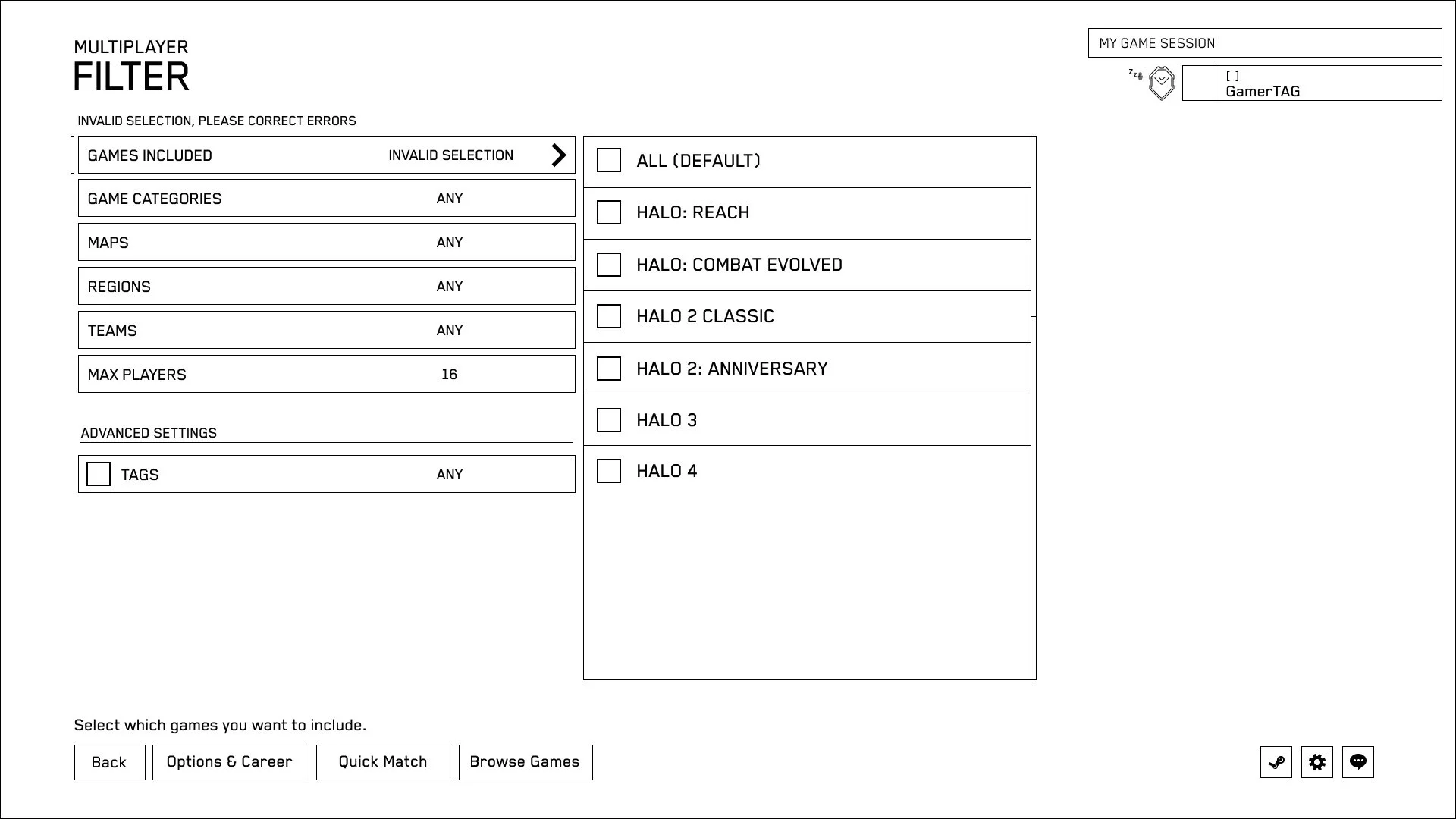
When a user attempts to go to a different filter category without having made valid selections, they will be prevented from doing so.
Invalid selection is when a user has not picked ANY options in the filter category. The user must select at least one option in each filter category.
It will stay open on the current category that has the invalid selections and the display will say "Invalid Selection" as well as the filter information at the top letting the user know there's an error.
The message will say "Invalid Selection, please correct errors"
If the TAGS category is selected / active, then the user still must choose one option within that category in order for it to be a valid selection. This will filter the results accordingly.
If the TAGS category is not selected, then it will act the same as if "All" or "Any" had been selected and the results will display any tags.
Games Included
Wireframe for Games Included PC/STEAM


Allows the user to choose which games they would like to include.
- If any of the titles are unchecked, the "ALL" also becomes unchecked.
- This section has an "ALL" option at the top. When toggled on, it selects all of the titles.
- If the checked "ALL" is unchecked, the entire list of options is also unchecked.
These are the possible display options reflected in the filter category:
- ANY: If all the game titles are selected
- CUSTOM: If some of the game titles are selected
- [Name of Specific Game Title]: If only a single game title is selected
Game Titles Not Installed
Even if the user does not have a specific game title installed, they will be able to select and include that game title as part of their filter preferences.
This is because we want the user to see that there's a lot of games available, in all sorts of titles in the Browse screen game listings.
- Browse screen: When a user attempts to join a game session that has a game title they do not have installed, they will be prompted to install the game.
- Quick Match: Before the search even begins, as soon as the user enters the Quick Match screen, if they had selected titles in the filter preferences that they don't have installed, they will be prompted to install the games.
Title Selections Impact Other Category Options
Depending on what game titles the user has selected, it will impact which options are available in the other filter categories.
For example, if the user has only selected the game title, Halo 3, then:
- Only game categories available for Halo 3 will be available for the user to select in the "Game Categories" filter category
- Only maps available for Halo 3 will be available for the user to select in the "Maps" filter category
This follows pre-existing patterns of if / then logic surrounding title selections impacting game category and map selection options throughout MCC.
The CareerDB GameInfo class exposes APIs on the for retrieving categories (GetSupportedGameCategories) and map ids supported by a given game.
Game Categories
Wireframe for Game Categories Filter PC/STEAM


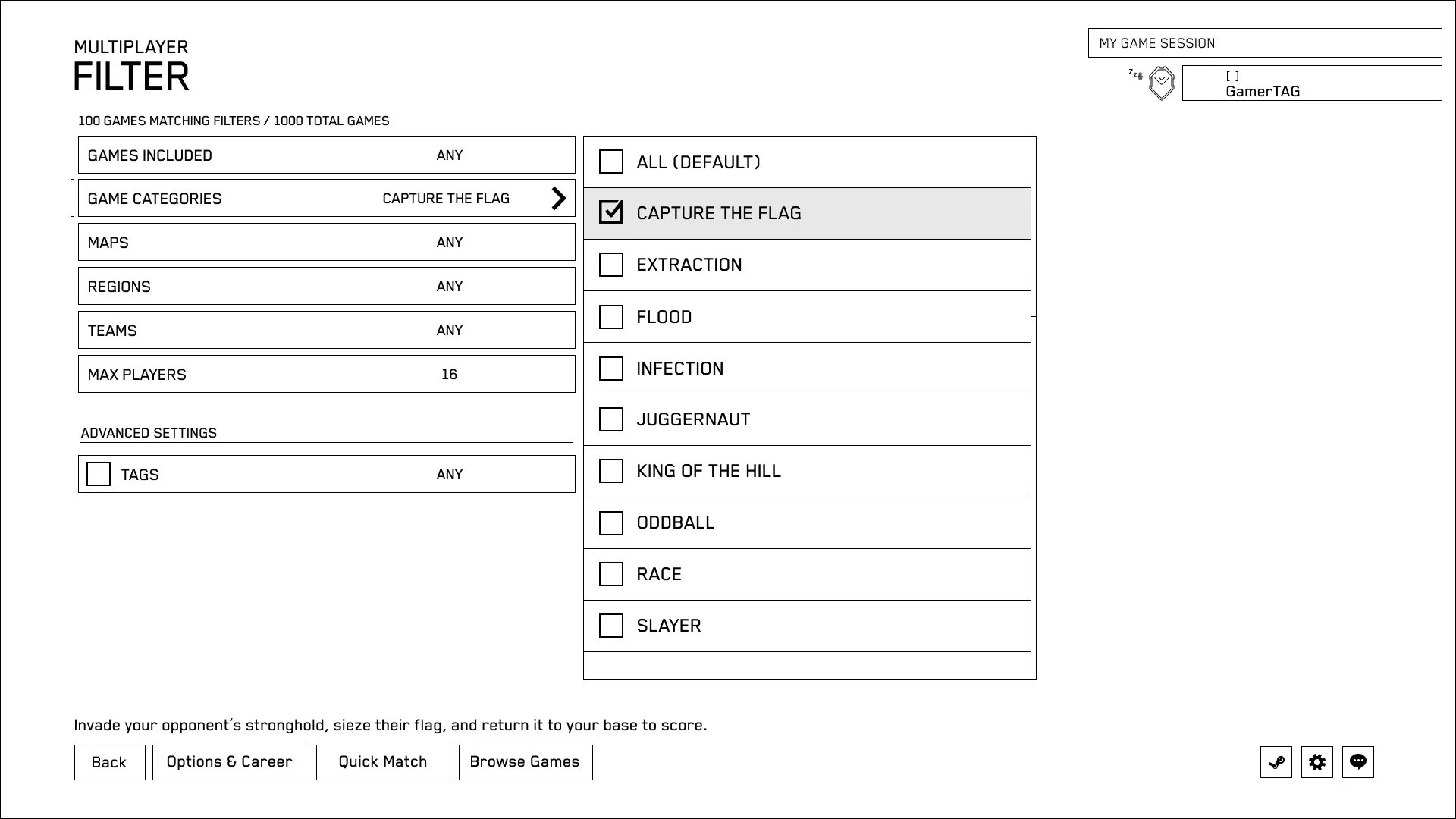
There is an option at the top for "ALL" to quickly select all of the game category options.
- If game categories from the list are unchecked, the "ALL" also becomes unchecked.
- If the checked "ALL" is unchecked by the user, all of the game category options also become unchecked.
- If "ALL" is checked, all of the map options also become selected.
Allows the user to choose which base game categories they would like to include. These are the same categories pre-existing in other areas of MCC (such as in Matchmaking)
- ANY: If all game categories are selected
- CUSTOM: If some of the game categories are selected, but others are not
- [Name of Specific Game Category]: If only a single game category is selected
Game Categories should be displayed alphabetically A - Z.
Maps
Wireframe for Maps Filter PC / STEAM


There is an option at the top for "ALL" to quickly select all of the map options:
- If maps from the list are unchecked, the "ALL" also becomes unchecked.
- If the checked "ALL" is unchecked by the user, all of the map options also become unchecked.
- If "ALL" is checked, all of the map options also become selected.
Allows the user to choose which base maps they would like to include. These are the same maps pre-existing in other areas of MCC.
- ANY: If all maps selected
- CUSTOM: If some of the maps are selected, but others are not
- [Name of Specific Map]: If only a single map is selected
Maps should be displayed in the established UI display order seen in other parts of MCC.
Regions
Wireframe for Regions Filter PC / STEAM
.jpg)
There is an option at the top for "ALL" to quickly select all of the region options.
- If regions from the list are unchecked, the "ALL" also becomes unchecked.
- If the checked "ALL" is unchecked by the user, all of the region options also become unchecked.
- If "ALL" is checked, all of the region options also become selected.
Scrolling list with checkboxes.
This is a dedicated server specific search.
- ANY: If all regions are selected
- CUSTOM: If some of the regions are selected, but others are not
- [Name of Specific Region]: If only a single region is selected
Regions should be displayed alphabetically A - Z.
Teams
Wireframe for Teams Filter PC/STEAM

Arrow stepper widget. Should include 3 settings. Specifies whether the game should include teams enabled or not.
- ANY
- ENABLED
- DISABLED
Max Players
Wireframe Max Players Filter PC/STEAM

Arrow stepper widget. Allows the user to specify the maximum number of players they want to play with.
Options are:
- 2
- 4
- 8
- 16
Tags
Wireframe for Tags Filter PC/STEAM


Tags is an optional filter. By default all of the tags are selected:
- If tags from the list are unchecked, the "ALL" also becomes unchecked.
- If the checked "ALL" is unchecked by the user, all of the tag options also become unchecked.
- If "ALL" is checked, all of the tag options also become selected.
Users can select which tags they would like to include in their filter preferences.
- The list of tags is a predetermined list that users can choose from.
- Users will not be able to create their own tags.
- Users will not be able to edit the list of tags.
- The list of tags will need to be able to be easily modified / updated / configured.
When tags is "active" or checked, then these selections will affect the results in Quick Match and the Browse screen.
If tags is not active or unchecked, then the selections will not affect the results.
- ANY: If all tags are selected
- CUSTOM: If some of the tags are selected, but others are not
- [Name of Specific Tag]: If only a single tag is selected
Tags should be displayed alphabetically A - Z.
Tags (Predetermined List, Technical Details)
The following tags will be supported.
- Core Casual
- Core Competitive
- Mini Game
When creating a session, a user will choose a single tag to apply to a CGB Playlist Variant. These are an additional filtering axis which layer on top of the others. For example, Fiesta and MLG are both variants of Slayer with very different audiences. The former would be a Core Casual type of Slayer while the latter would be Core Competitive.
These tags should be defined by an enum in the UUIInterface namespace within UUICustomGamesBrowserInterface.hpp. We may add additional values to this enumeration over time based on feedback and player patterns.
enum class CGBPlaylistVariantTag { CoreCasual = 0, CoreCompetitive, MiniGame, Count }; |
Tags between CGB Variant Versions
CGB Variants that were created before Tags are implemented, will receive "Core Casual" as a default tag.
They will be informed through the build notes, and what other forms of messaging channels we can manage to let the users know that they need to update their CGB Variants if they wish to select one of the other tags to represent their CGB Variants.
Adjustments to Existing Screens or Flows
CGB Main Menu
Wireframe for Main Menu update PC/STEAM
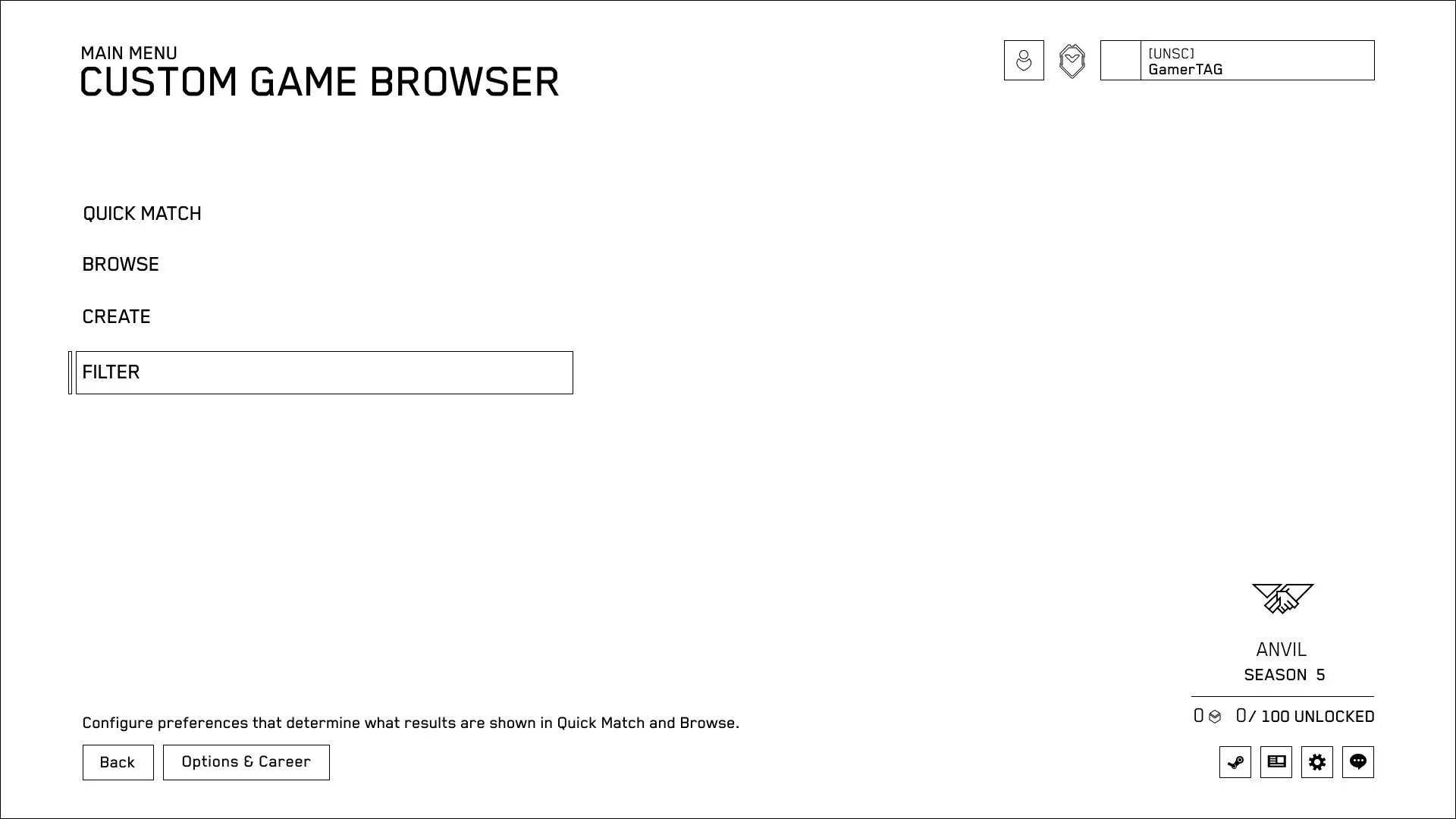
Filter needs to be added to the main menu.
Browse Screen (Main)
Wireframe for main Browse screen update PC/STEAM
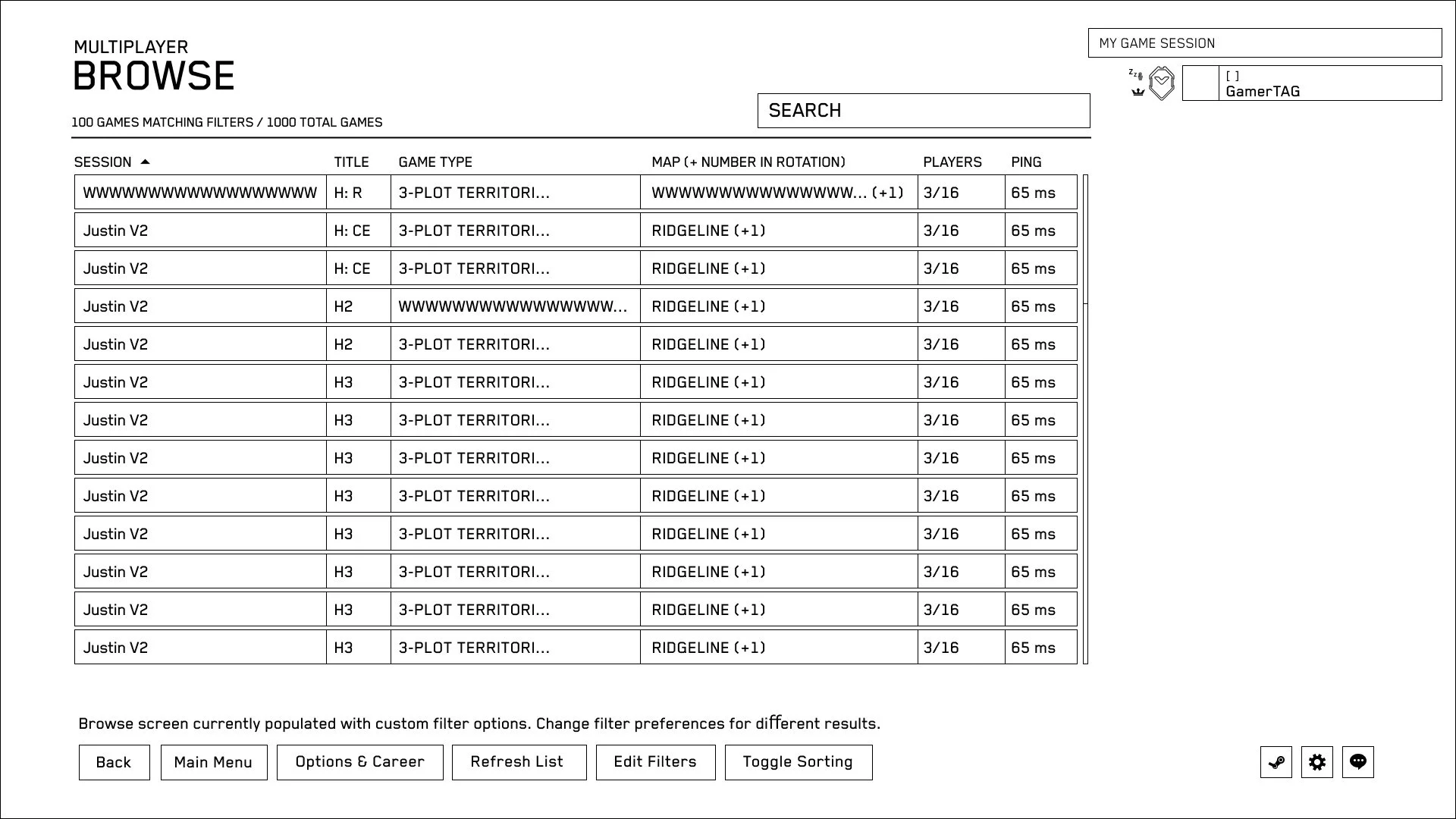
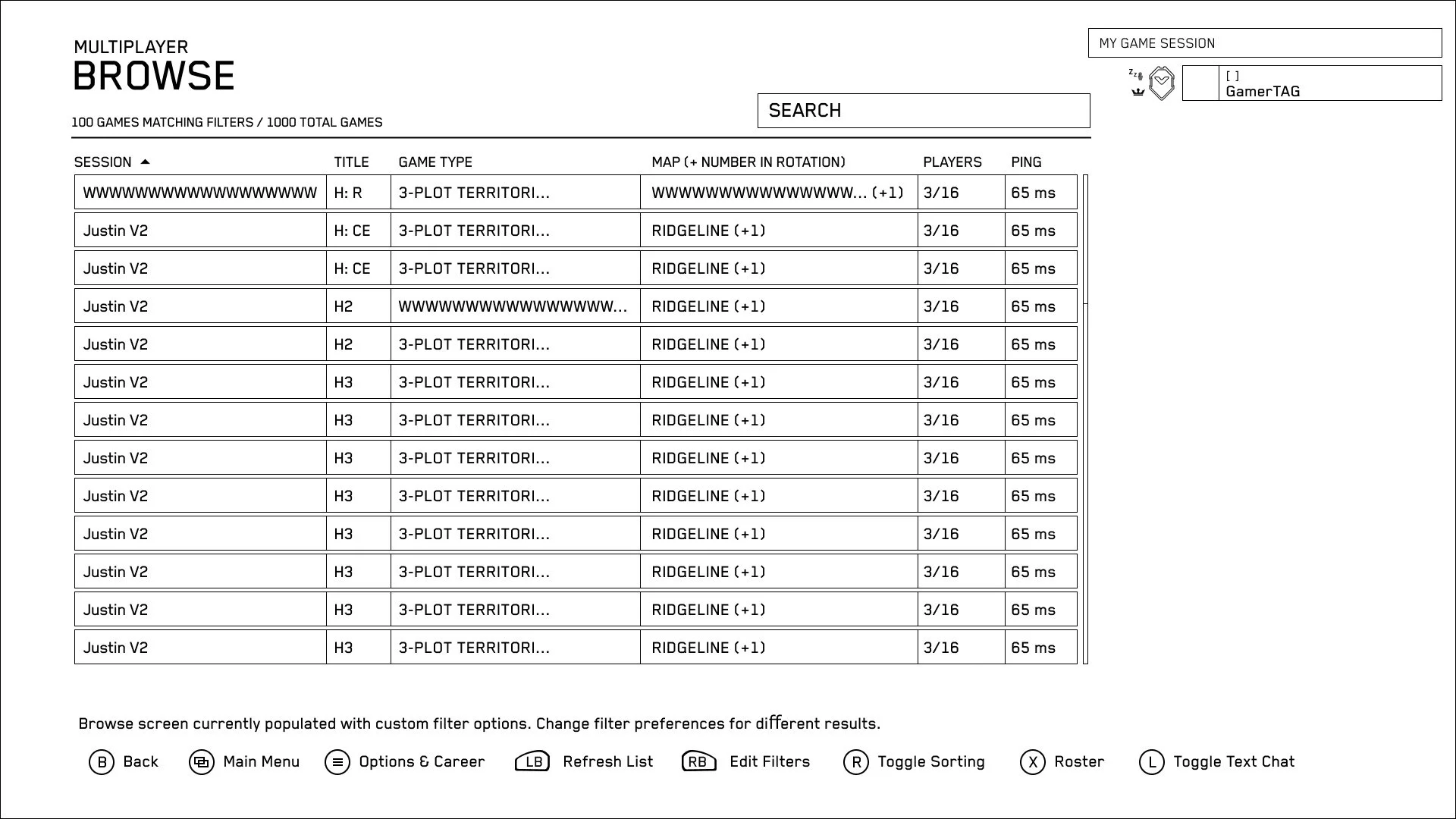
- Edit Filters button needs to be added to the Browse Screen
- When the user is using default filters, the tooltip at the bottom will let them know
- When the user is using custom filter preferences, the tooltip at the bottom will let them know
- Edit Filters button on PC , Right Bumper | Edit Filters button on XBOX
Browse Screen (Main - No Sessions Found)
Wireframe for Browse Screen when no sessions are found PC/STEAM
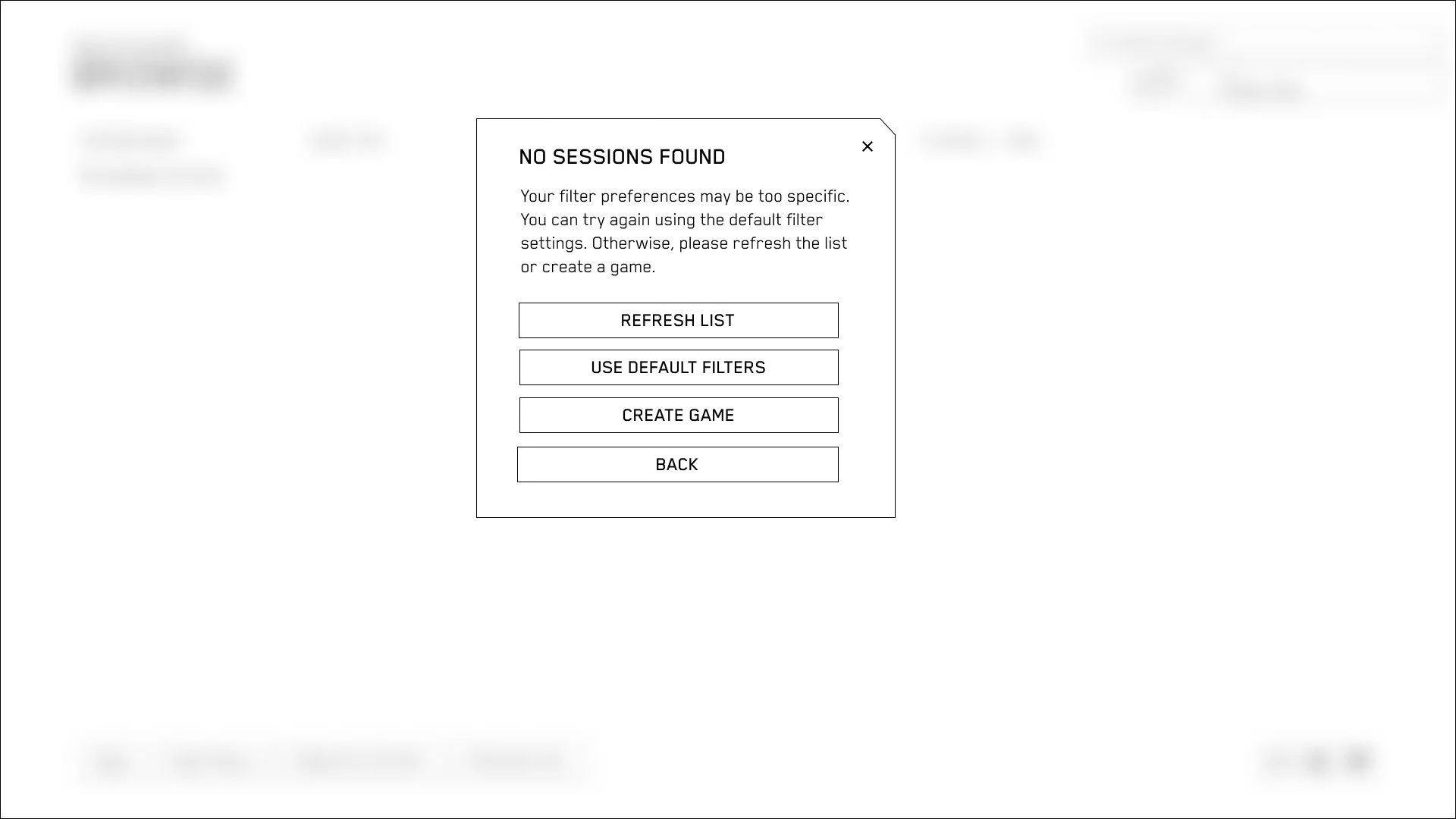
When a session can not be found and the session list on the Browse screen comes up empty, users will get a prompt letting them know that their session preferences may be too specific.
They will be able to take the following actions:
- Refresh the list: Tries again with the current filter preferences)
- Use default filters: Tries again with the default filter preferences and doesn't overwrite the user's custom filters if they had made changes to the filter preferences)
- Create Game: Takes the user to the create flow, starting from the game title selections screen)
- Back: Returns the user to the browse screen
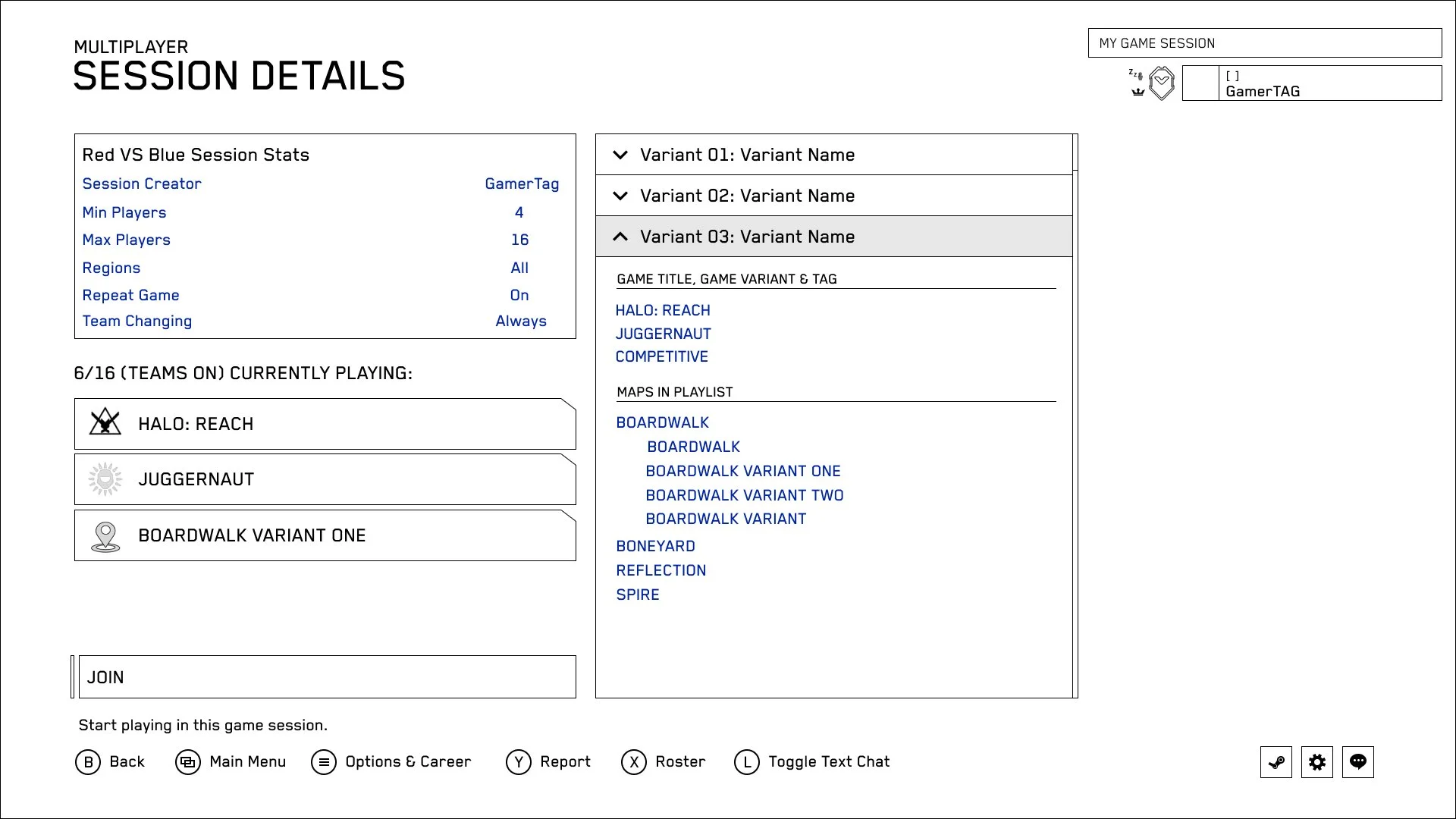
Session Details Screen
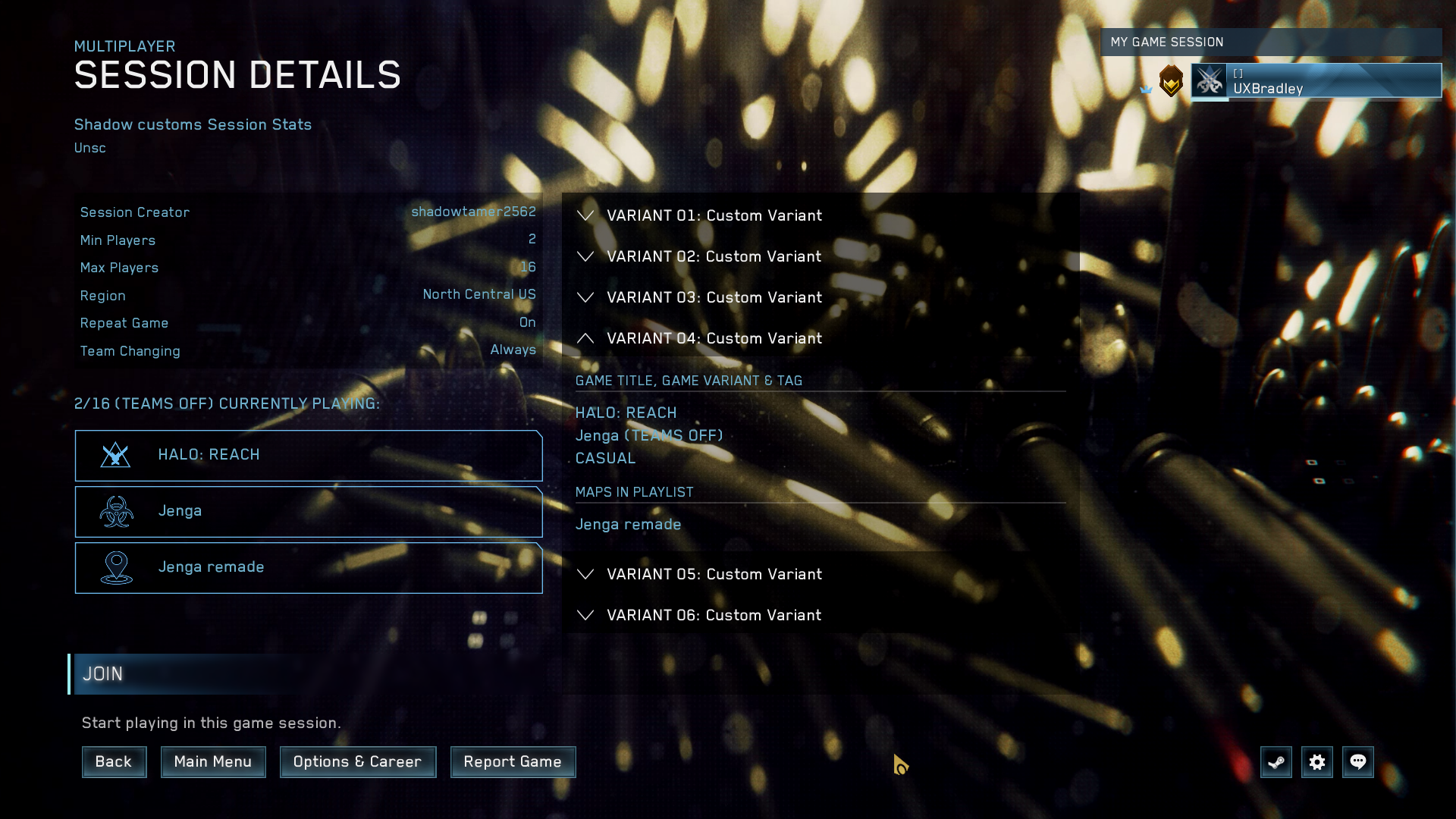
Wireframe for Session Details Screen update PC/STEAM
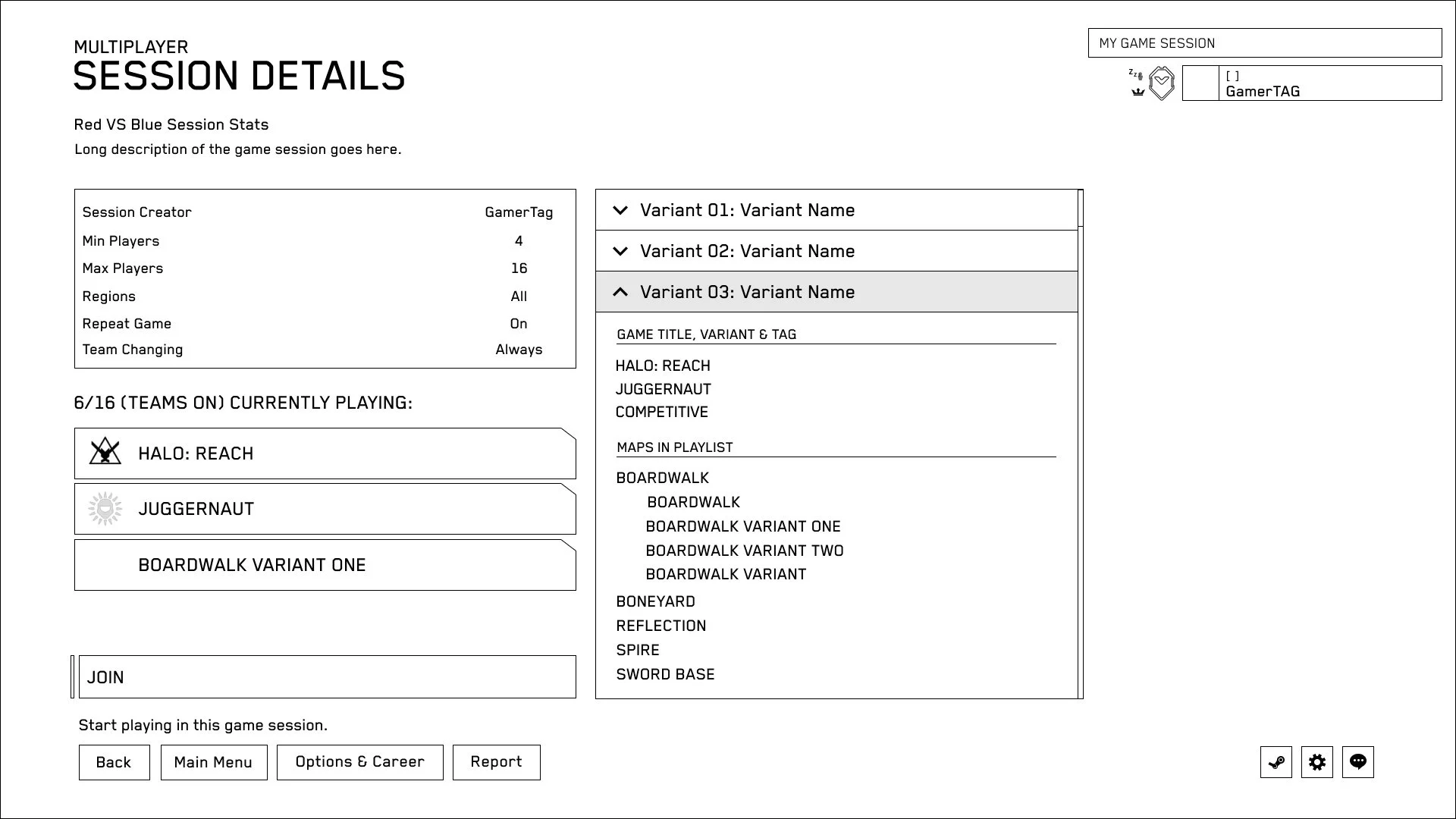
Session Details Screen has several updates, which are outlined in a separate spec.
But the change related to the Filters, is the addition of tag information in the session detail screen, as part of the variant details on the right hand side.
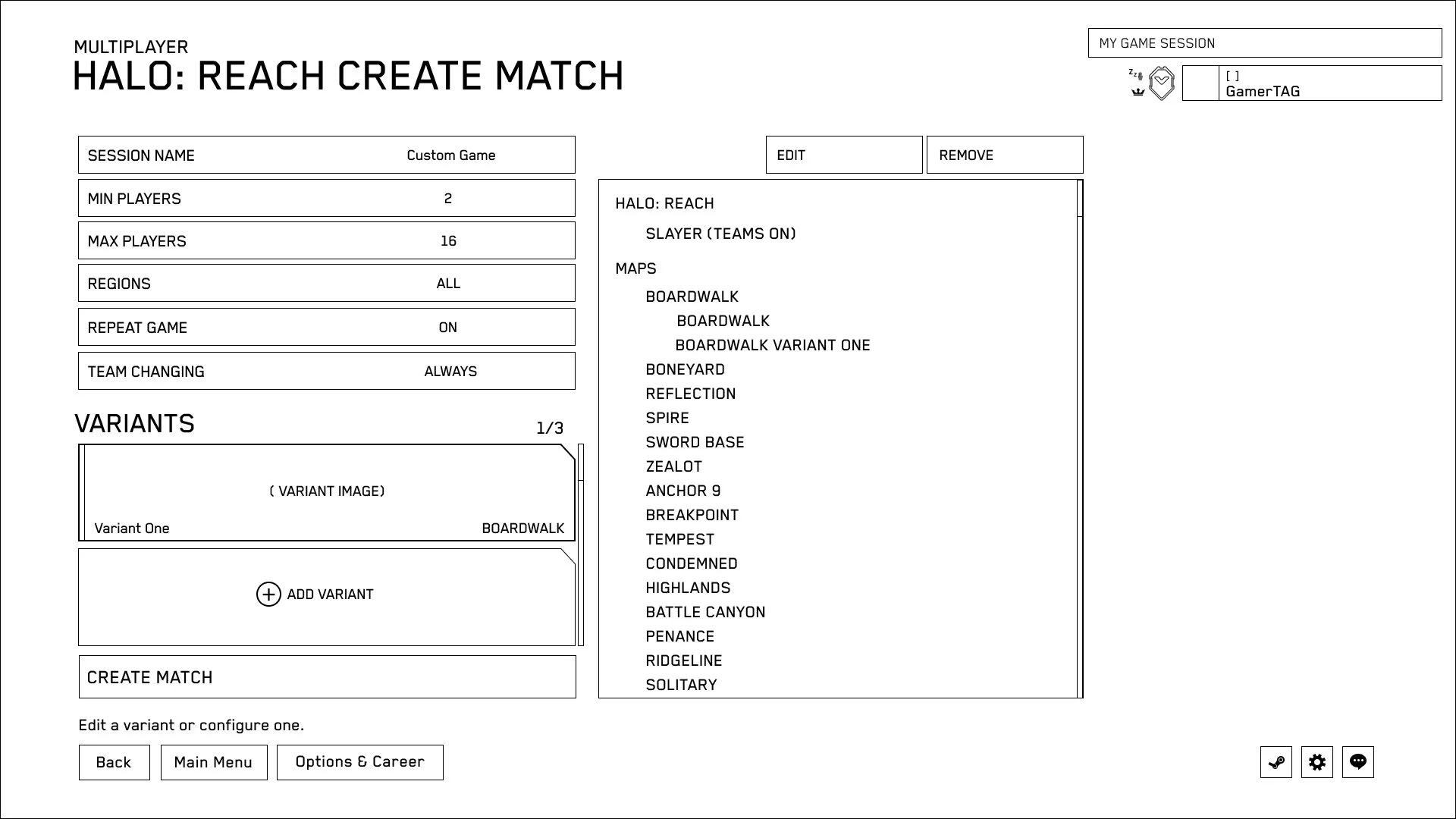
Create Screen
Wireframe for Create Screen update PC/STEAM
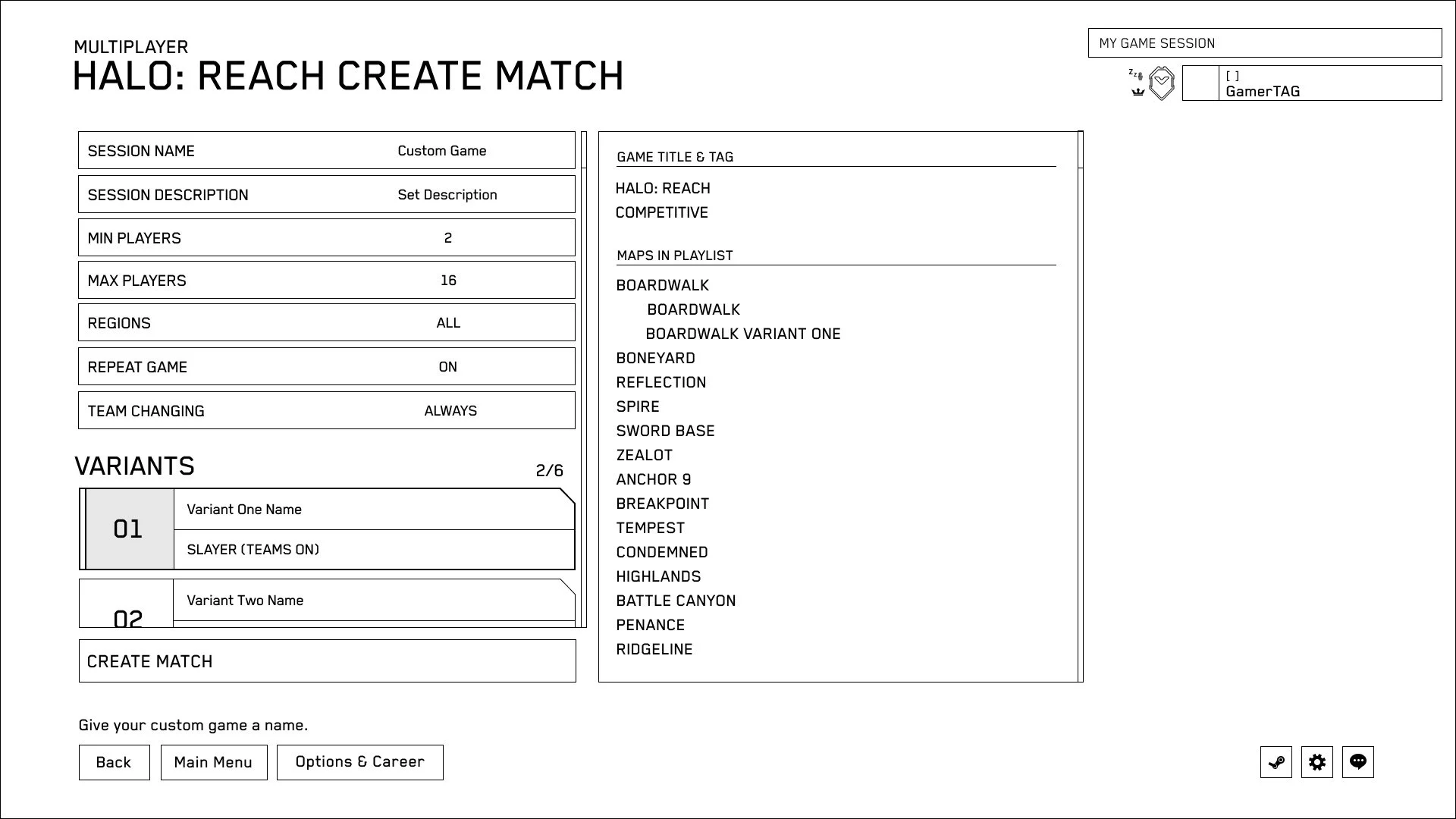
There's a few updates to the Create screen outlined in a separate spec, but one change specific to the Filters, is the addition of Tag information in the variant information display on the right hand side.
Create Flow - Select Tags
Wireframe for Select Tags screen update PC/STEAM

There's a few updates to the Create flow, outlined in a separate spec, but one change specific to the Filters, is the addition of the "Select Tags" screen in the Create Flow.
This will appear after the user has selected a Game Variant for their CGB Variant.
Quick Match
Wireframe for Quick Match screen PC/STEAM
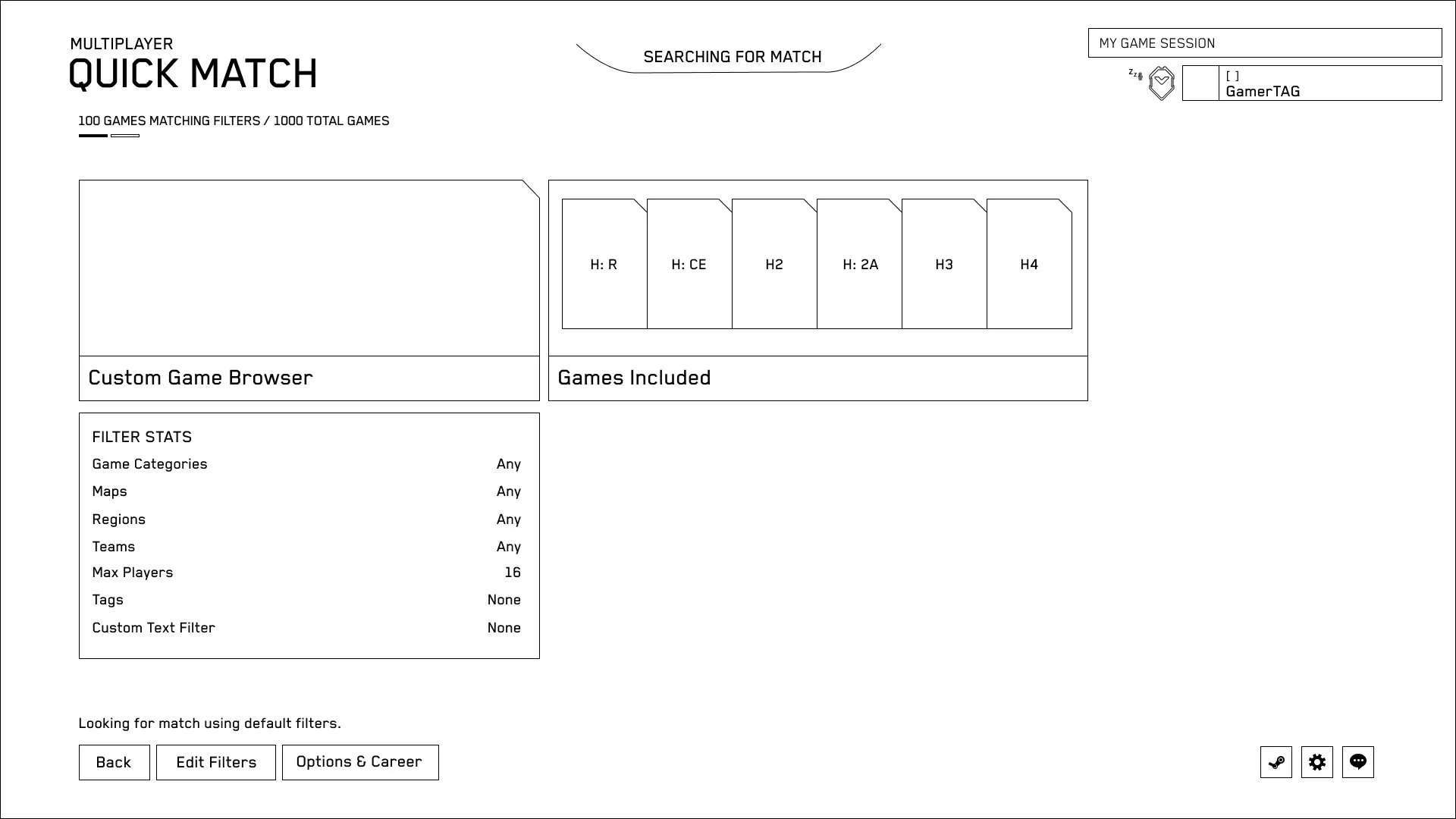
Edit Filters button is also available to users on the Quick Match screen
Feedback & Update Notes
- Deleted the "Limits the search to user specified regions from regions offered in Network options" line under filters.
- Updated the Invalid Filter Selections section to describe in more detail how this applies to TAGS category.
- Added information on what happens to existing CGB Variants when Tags are implemented.
- Added a section to address invalid filter selections
- Maps order updated




WIREFRAMES & DEV BUILD
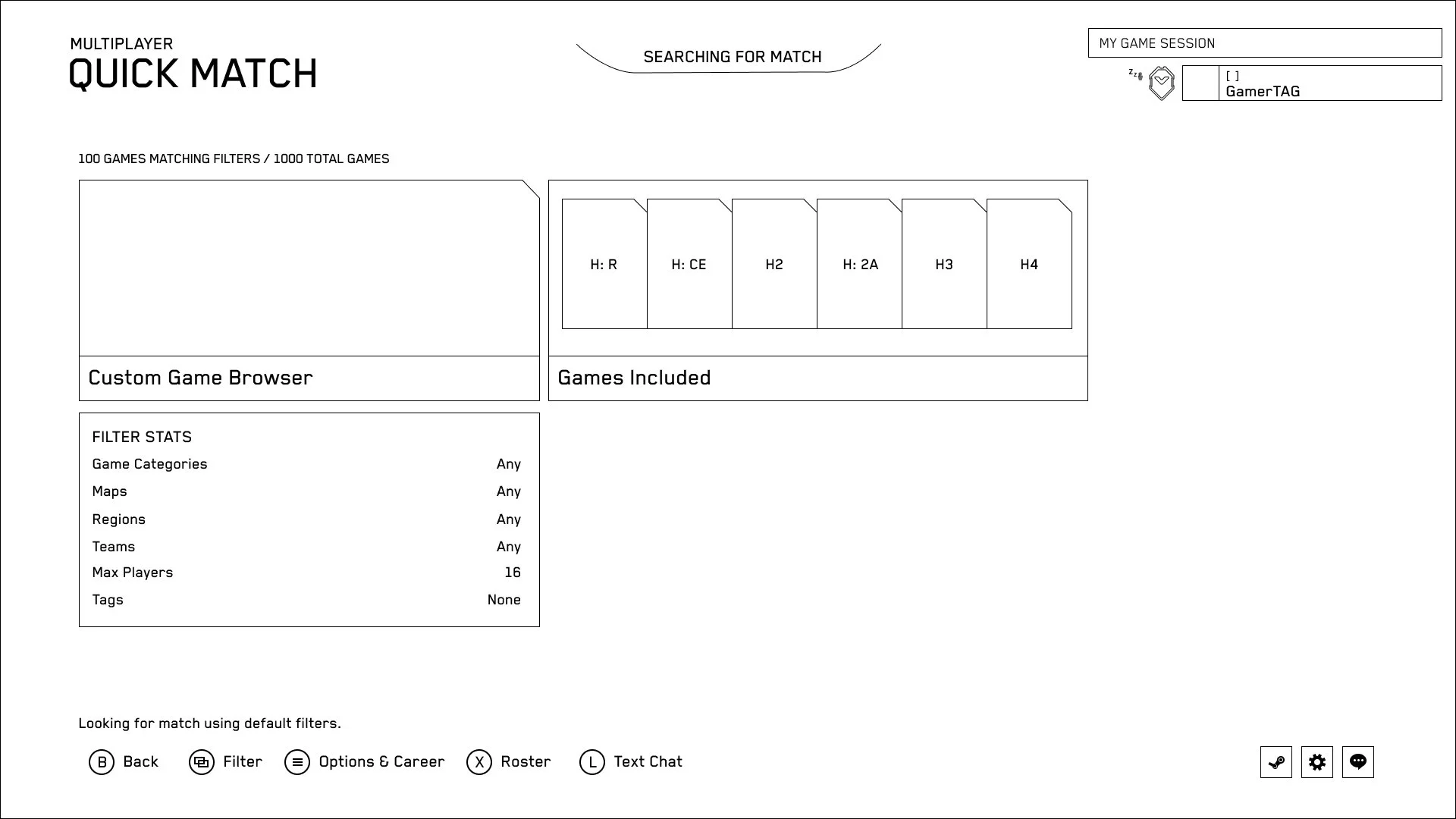
These are wireframes paired with screenshots of the dev build before the feature launched.
I used these in my communication with external teams supporting the implementation.

After the feature launched, I worked with our user research team to get answers to questions that I had about the design.
I drafted the questions and collaborated with our research lead to refine them before they went into the survey in preparation for an update on the feature our teams had already committed to doing. Time for the work was reserved ahead of time so it gave me the perfect opportunity to coordinate and get research questions out.
Survey Participation
What I Wanted to Learn
The first survey focused on understanding how players were actually using the Custom Game Browser after launch and where the experience was creating friction.
Were players primarily browsing for games or creating their own sessions?
Could players discover and understand the browser's sorting controls?
How much effort did it take to find a game they were interested in?
Did the browser provide enough information to decide which game to join?
What did players expect to happen when a session was already full?
Did settings like Repeat Game and Team Changing behave the way players expected?
What We Learned
Most players came to browse.
61.1% said they only used the Custom Game Browser to find games created by other players. Only 5.5% said they used it exclusively to create their own games.
Players wanted to sort, but couldn't find it.
Only 21% of respondents said they knew how to change the order of games in the browser. 65% wanted to sort the list but did not know how.
Finding a game often required scrolling.
Most respondents said they had to scroll through the browser before finding a match they were interested in. Another 8.6% said they usually had to scroll through the entire list.
Player Write-ins Added More Context
The open-ended responses helped explain some of the friction behind the numbers. Players talked about having to scroll through long lists, games appearing to have open slots when they were actually full, unclear custom game names, difficulty understanding what some game types were, and not always having enough information to know what they were joining.
USER-TESTING (SURVEY #1)
Revisions based on feedback
One of the challenges of the revised designs is that we were limited to what we could change within a specific budgeted amount of hours, resources, etc. That meant, “what can we improve with small changes that have big impact”.
We had also prioritized adding a search feature so that games would be easier to find. Since search was going to take significantly more engineering and implementation effort, the other revisions needed to stay smaller in scope.
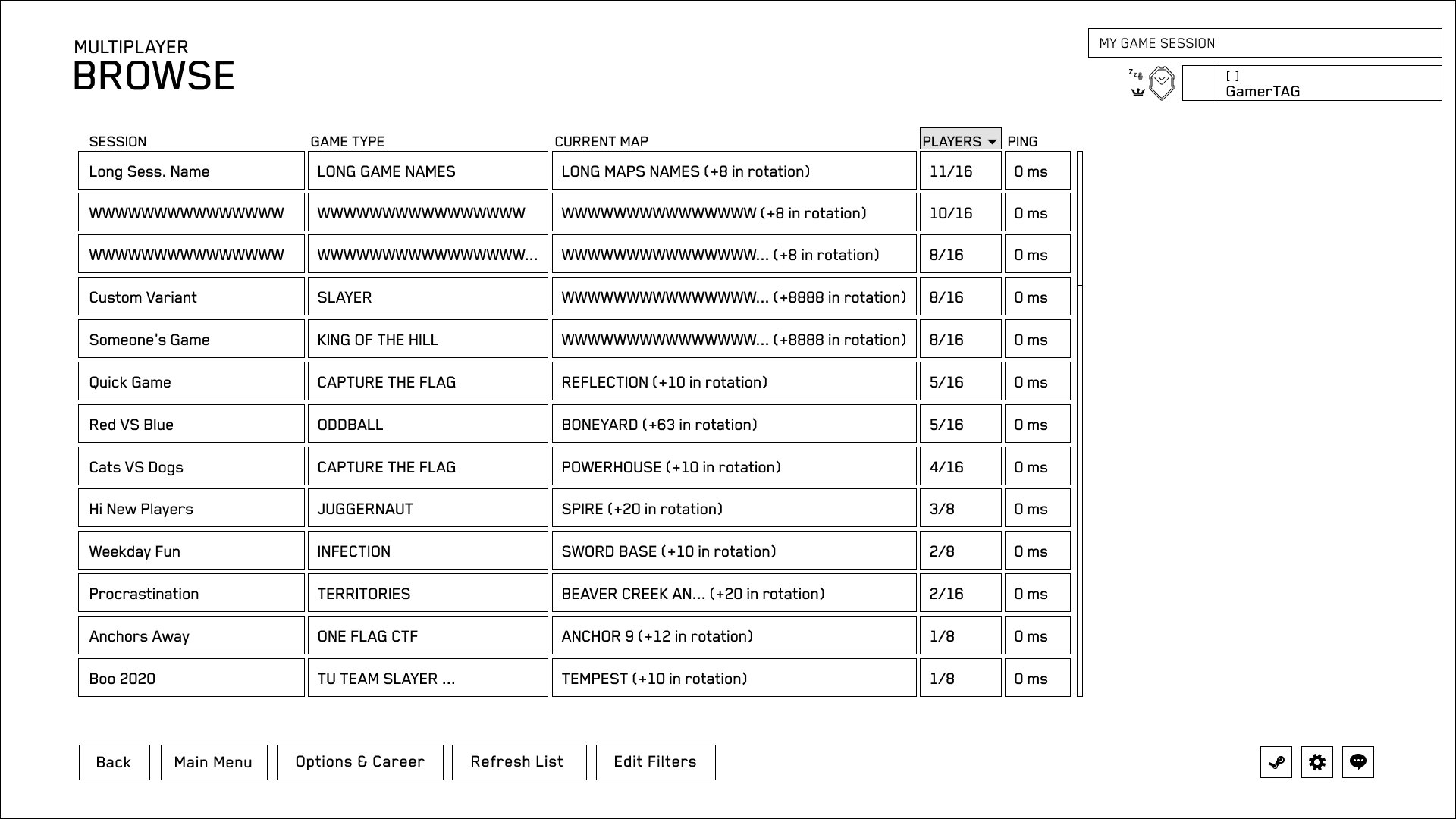
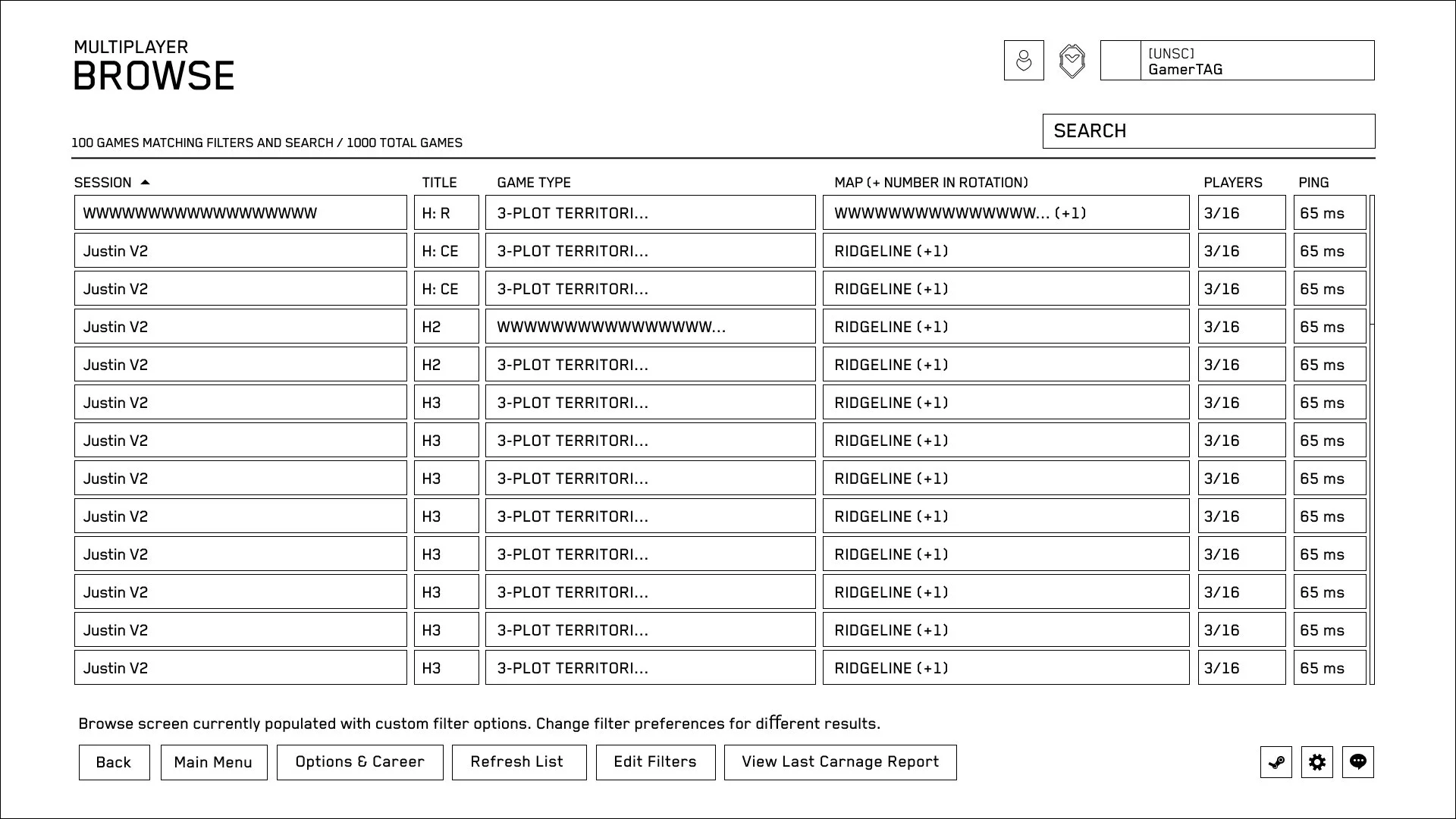
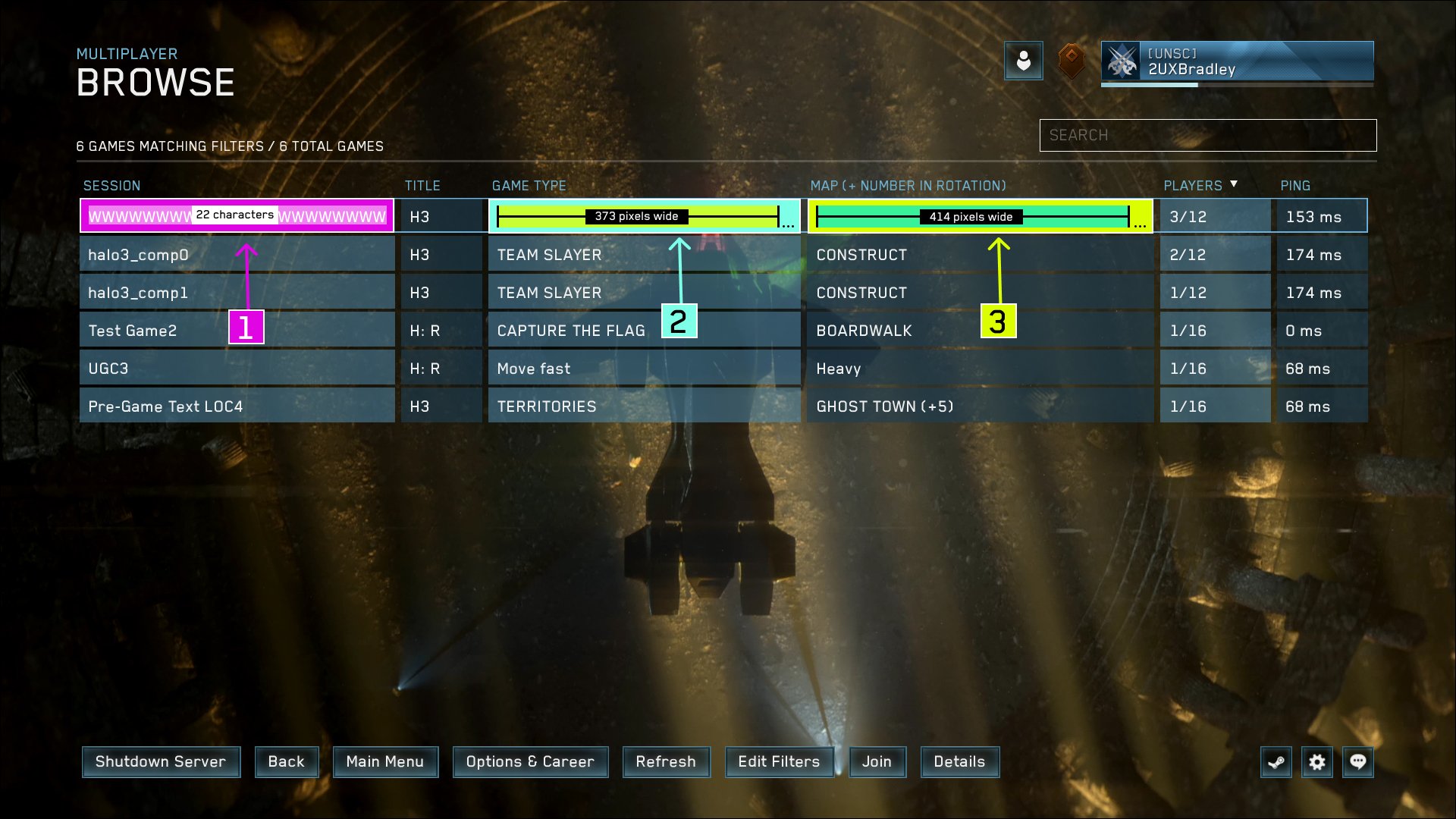
This is one example of design revisions. Specifically here, I focused on:
- Trying to make the information for each available game more clear at a glance
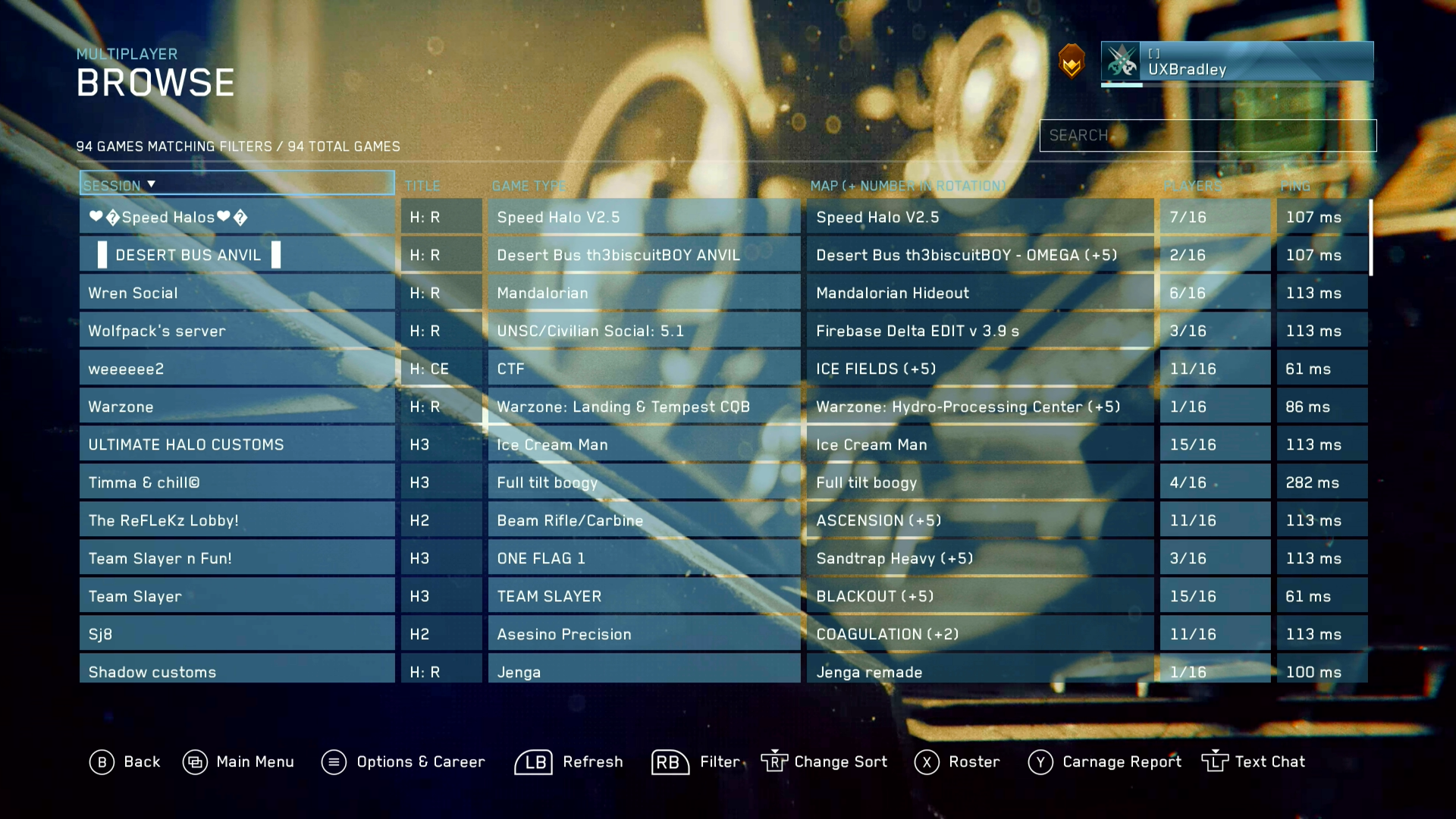
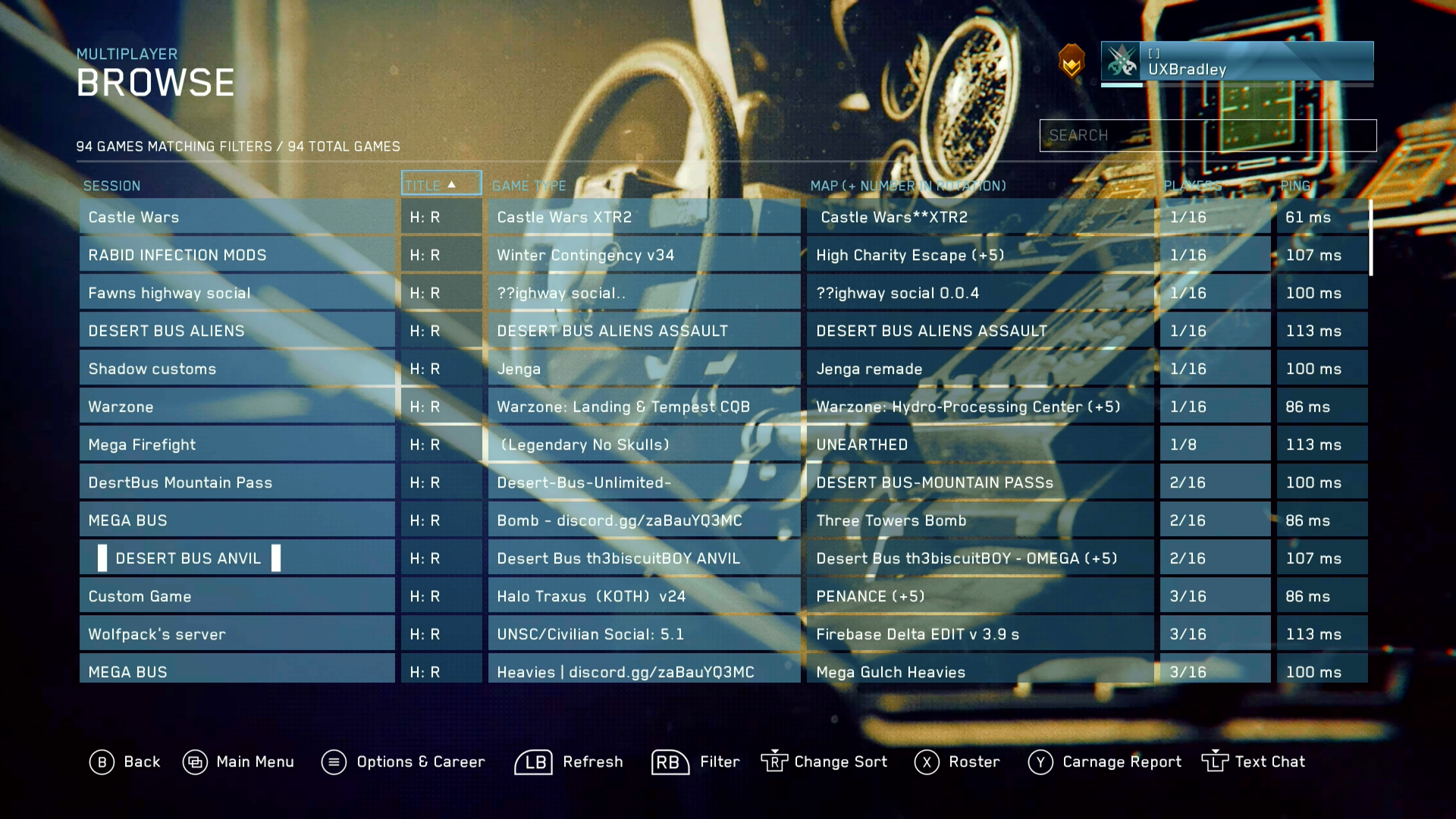
- Attempting to make sort easier to find
- Making search prominent
- Adding the number of games matching the selected filters at the top of the browser to draw attention to the existence of filters
I proposed removing the team roster on the side since it can be called back with a shortcut button-press and utilize the full width of the screen to display information instead. This was because I had noticed a lot of information in the columns being truncated due to space. Widening it allows more information to be displayed per column.
We also adjusted it so that focus starts up in the header row, which makes the sorting button appear in the helpbar at the bottom and a box appear around the header cell.
Wireframes
Screenshots
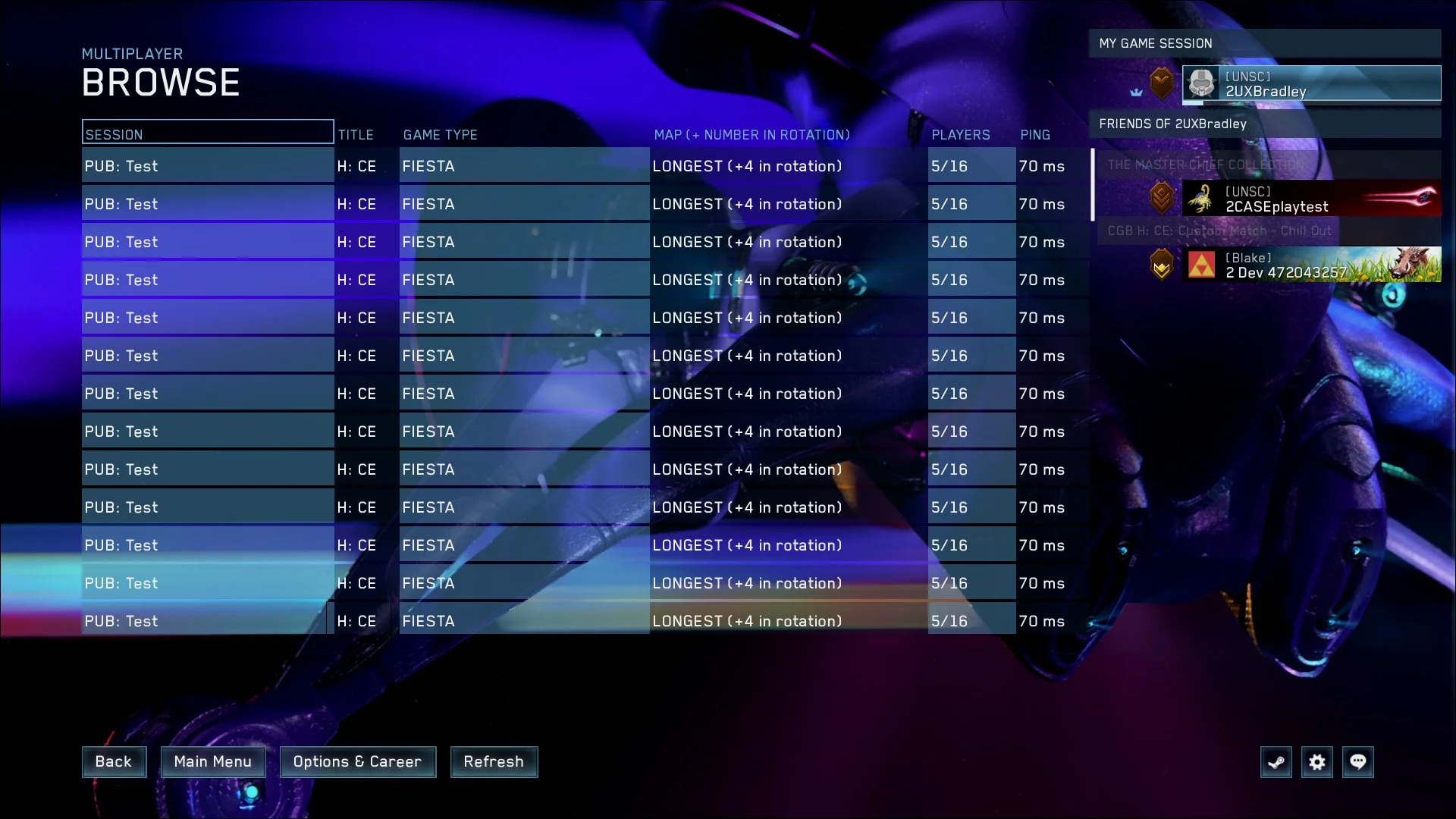
Sorting Changes
USER-TESTING (Survey #2)
For the Season 8 flight survey, I brought back several of the questions from the first survey so that we could compare the results with a different group of players.
The write-in responses from the first survey also helped identify areas that needed deeper investigation, so I expanded the second survey to cover newer parts of the experience and ask more targeted questions about Search, Session Details, Filters, and the individual steps involved in creating a custom game.
Season 8 Flight
Did Sorting Discoverability Improve?
Sorting was one of the clearest problems in the first survey, so I asked about it again during the Season 8 flight.
What Else We Learned
Players were still primarily browsing.
Around 80% of participants primarily used the Custom Game Browser to find games created by other players.
Another 16% split their time between browsing and creating, while only around 4% primarily created their own games.
Search worked well once players found it.
Only around 16% of participants reported using Search, while around 54% knew it existed but had not needed it.
Around 30% did not know Search was available. Among the players who had used it, satisfaction averaged 4.3 out of 5.
Session Details had a discoverability problem too.
About 38% of participants were unaware of the Session Details screen. Players who used it rated their satisfaction at an average of 3.9 out of 5.
Game, map, and mode information were identified as the most useful pieces of information on the screen.
The overall Create Match flow had more room for improvement.
70 people provided feedback about creating a match. Among those who had used the Create Match flow, average satisfaction was 3.3 out of 5.
Feedback included confusion around variants, limitations on the number of variants, and opportunities to make the overall setup clearer and easier to manage.
Filters were easy to use once discovered.
69 people provided feedback about the Filter screen. Most of the people who had used it found it easy to use, with an average ease rating of 4.4 out of 5.
Repeat Games was still unclear.
Almost half of respondents said they did not know what the Repeat Games setting did.
Team Changing performed better, although around 17% of participants still did not understand that setting.
The second survey reinforced several findings from the first round. Players were still primarily using the browser to find games, and helping them find the right session remained an important part of the experience.
Sorting discoverability had improved considerably, but the follow-up also showed that there was still confusion between sorting and filtering. The expanded questions gave us additional feedback about Search, Filters, Session Details, and Create Match that we did not have from the first survey.


