
accessibility planning
My role was as an “Accessibility Champ” (term given to people who were on the Accessibility mini-team). My mission was to establish a studio benchmark for what “good” accessibility experiences looked like and recommend a plan for our games moving forward.
The Goal
Do some competitive analysis and see what other games in the shooter genre have done for their accessibility features and establish a baseline. Take a look at player sentiment around the accessibility features of Halo Infinite (the most recently released game at the time) and determine opportunities for improvement.
Looking at infinite
I gathered what feedback I could find from across the web where players commented on their experience with Halo Infinite’s accessibility features.
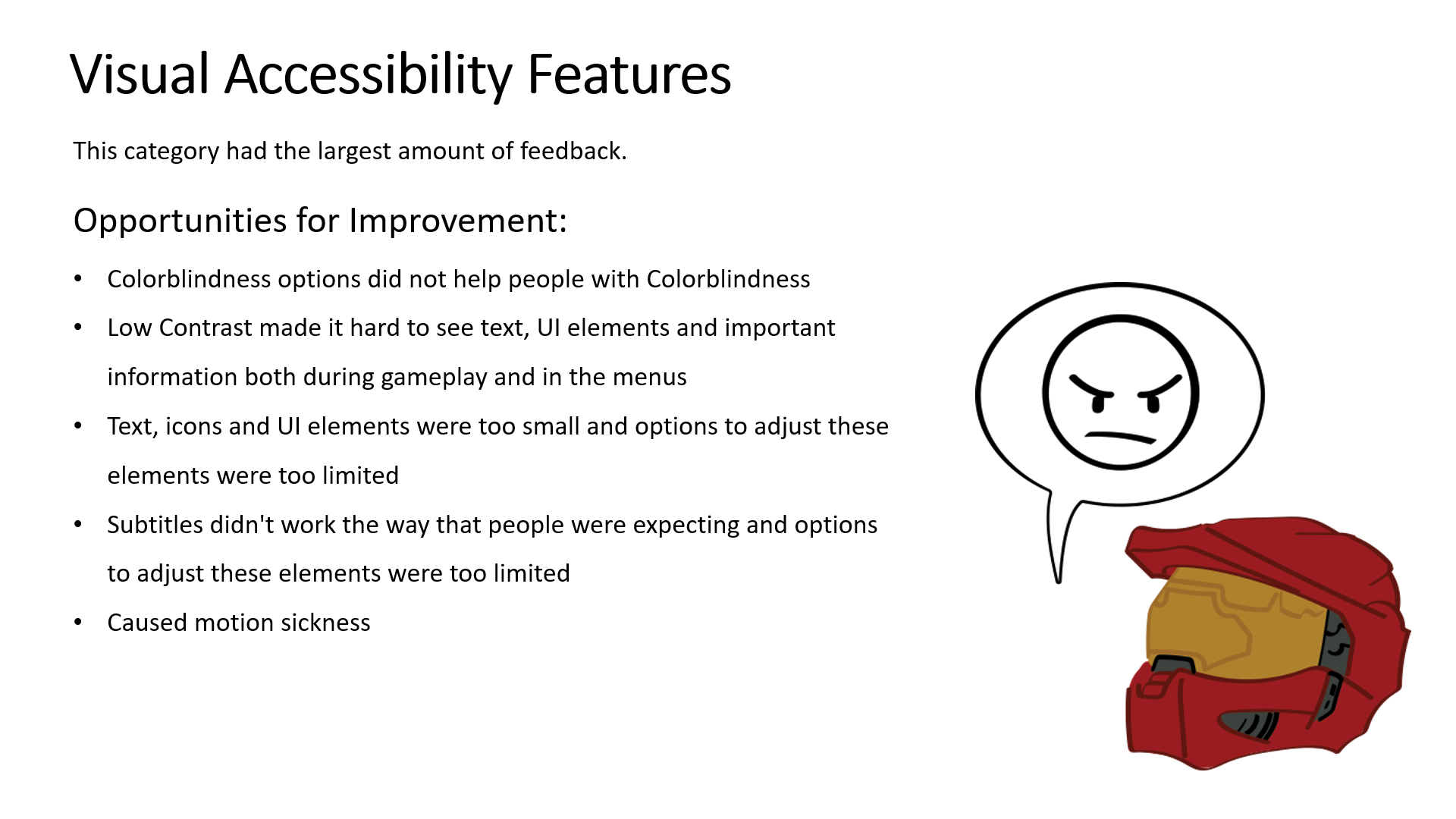
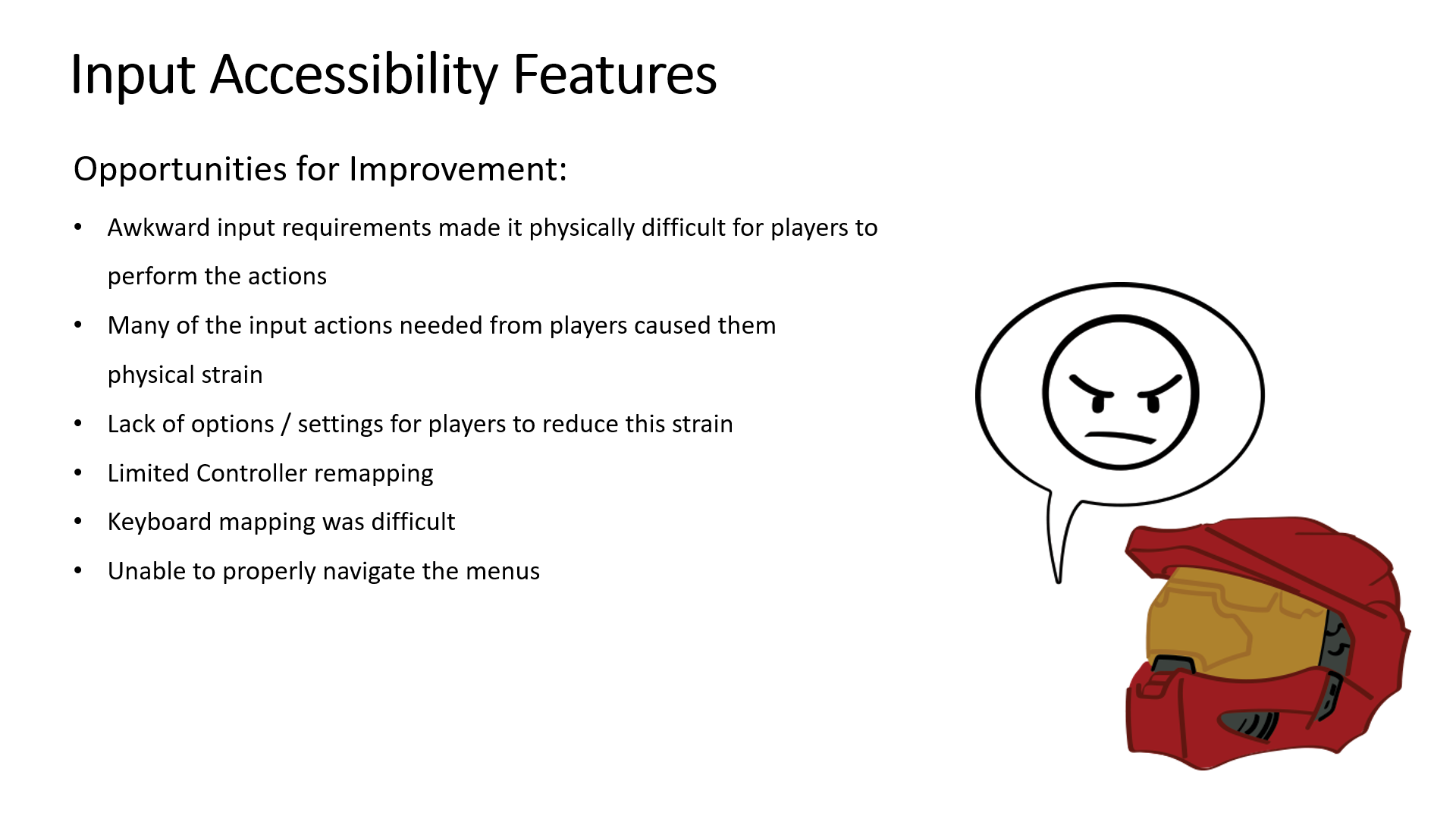
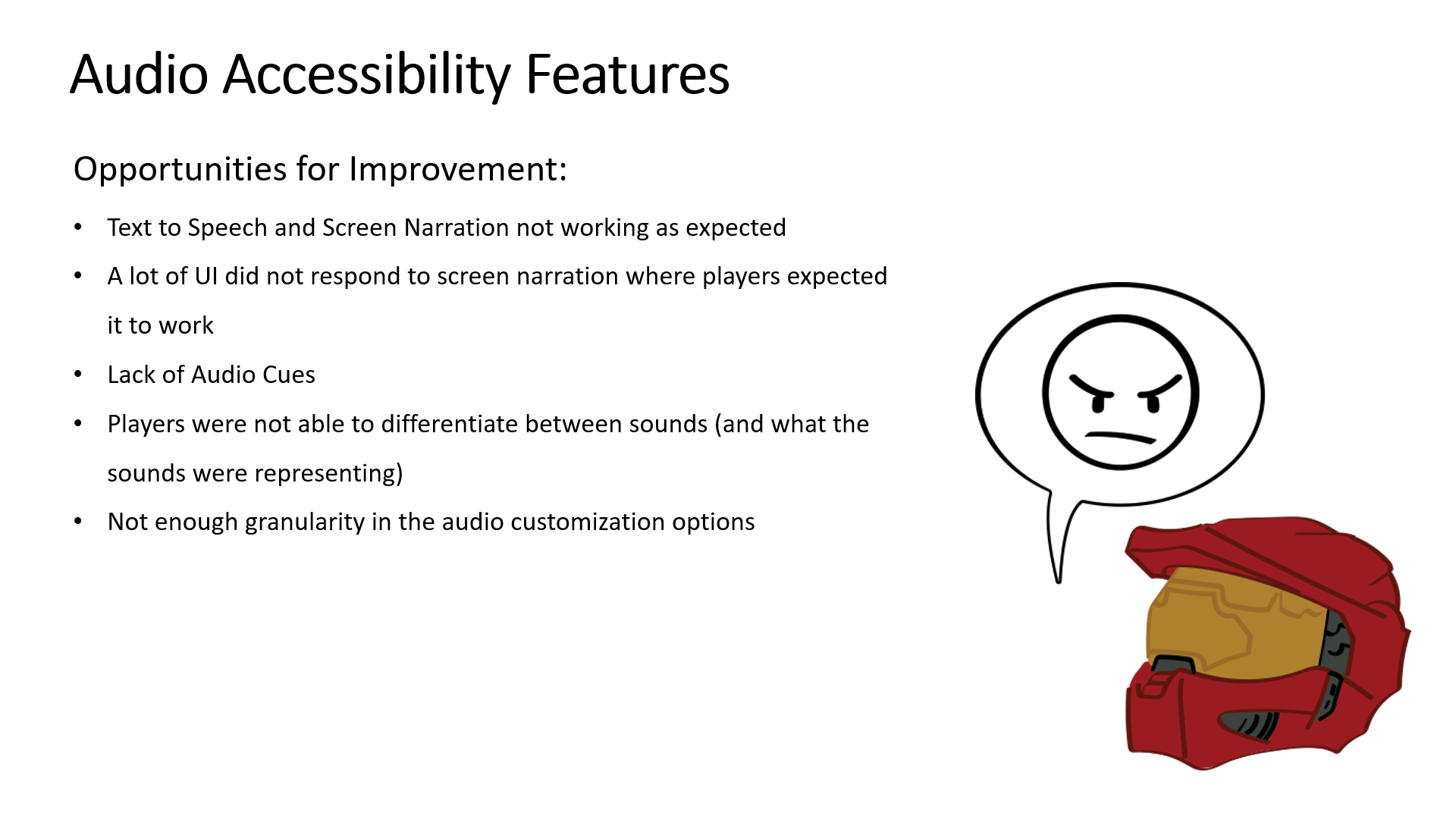
From that, I compiled the comments into categories where themes repeated and then distilled it down to the follow slides which I presented to our teams.
DOCUMENTATION EXAMPLES

Games that have "good" accessibility experiences
These examples come from my research on shooter games featured in articles about strong accessibility experiences, including those from "Can I Play That?" (Can I Play That? - For Disabled Gamers, By Disabled Gamers)
This is a brief excerpt from my research on Far Cry 6’s accessibility presets. I focused on capturing key details and providing visual examples for easy team reference.

Accessibility Presets
Within the Accessibility menu in Far Cry 6, players have access to a collection of options separated by categories. They are able to turn each one on or off as a set or adjust the options within each category individually.
From "Can I Play That?" article: Far Cry 6 accessibility review - Can I Play That?
"Far Cry 6 is the most accessible title in the franchise yet. It not only makes a strong case for Ubisoft’s most accessible game to date, but also the strongest argument I’ve ever seen for the most accessible FPS I’ve ever played. "
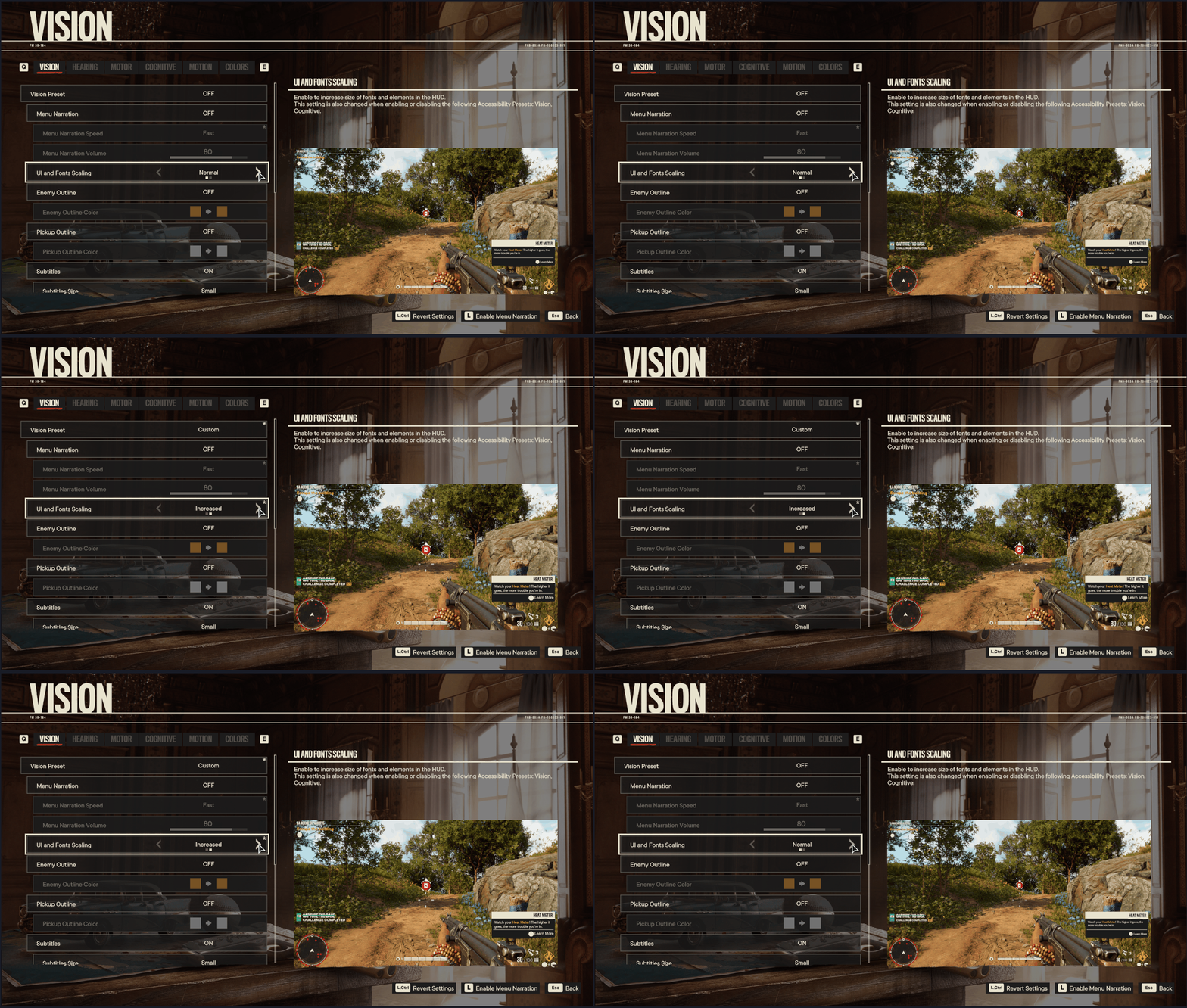
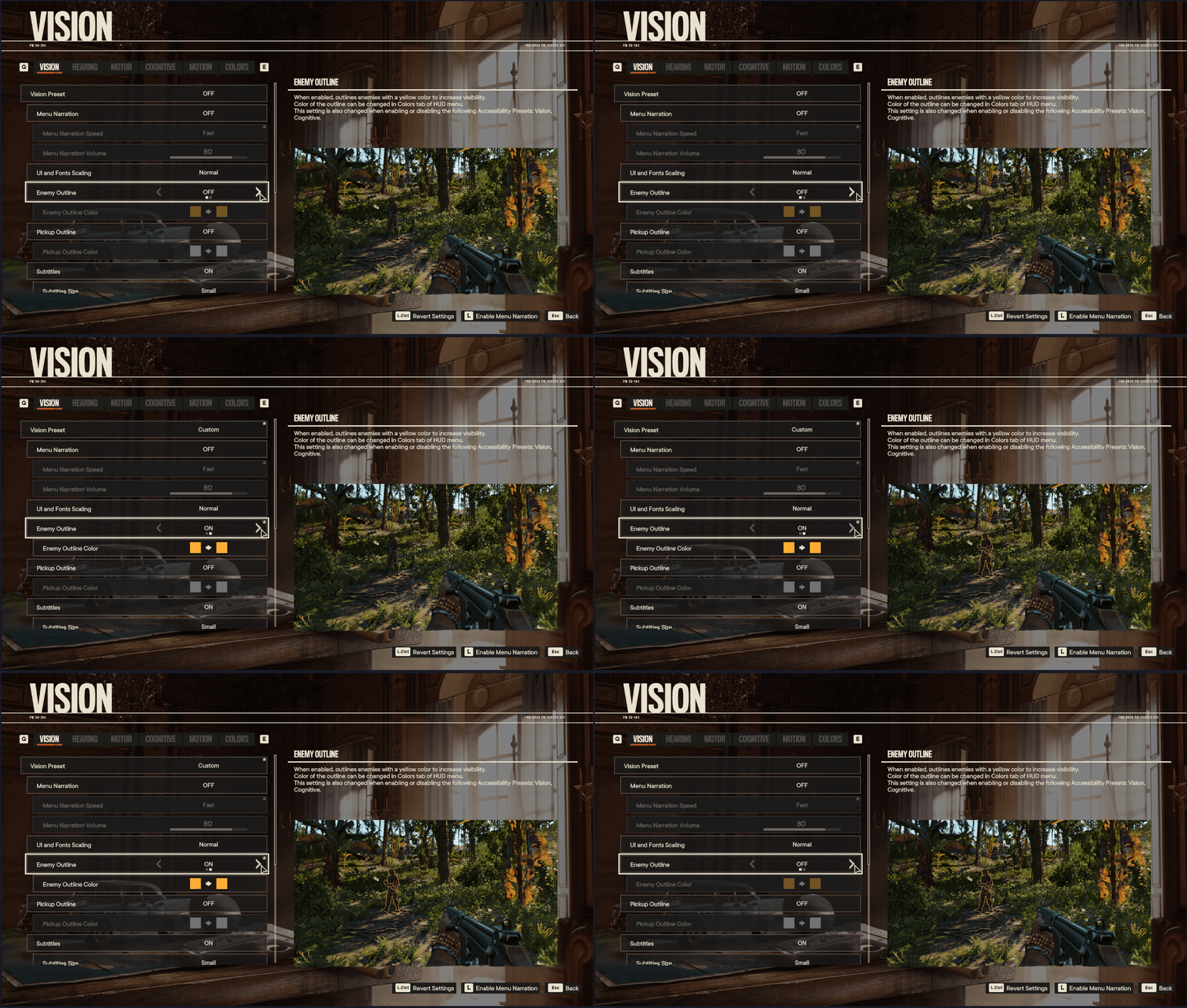
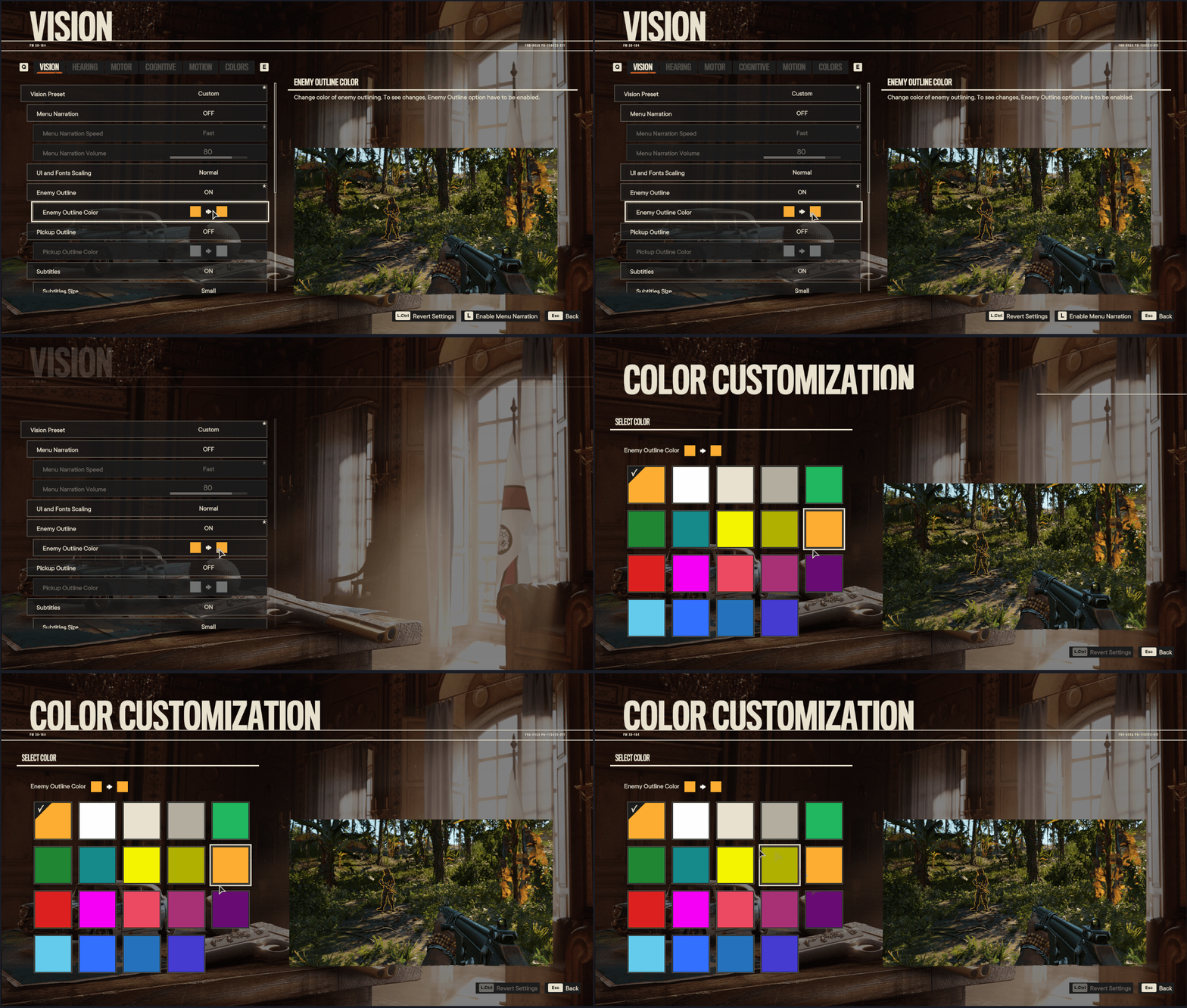

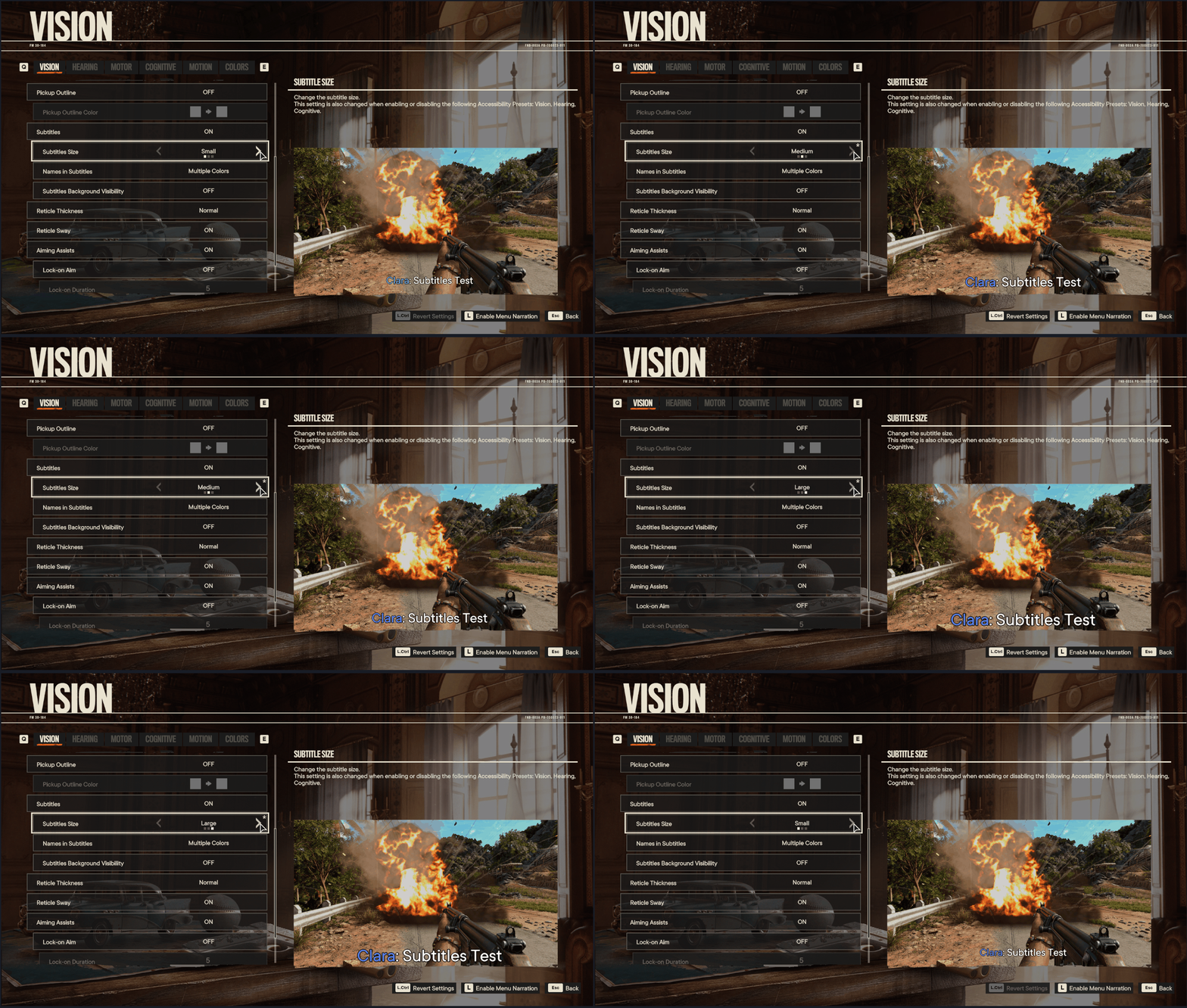
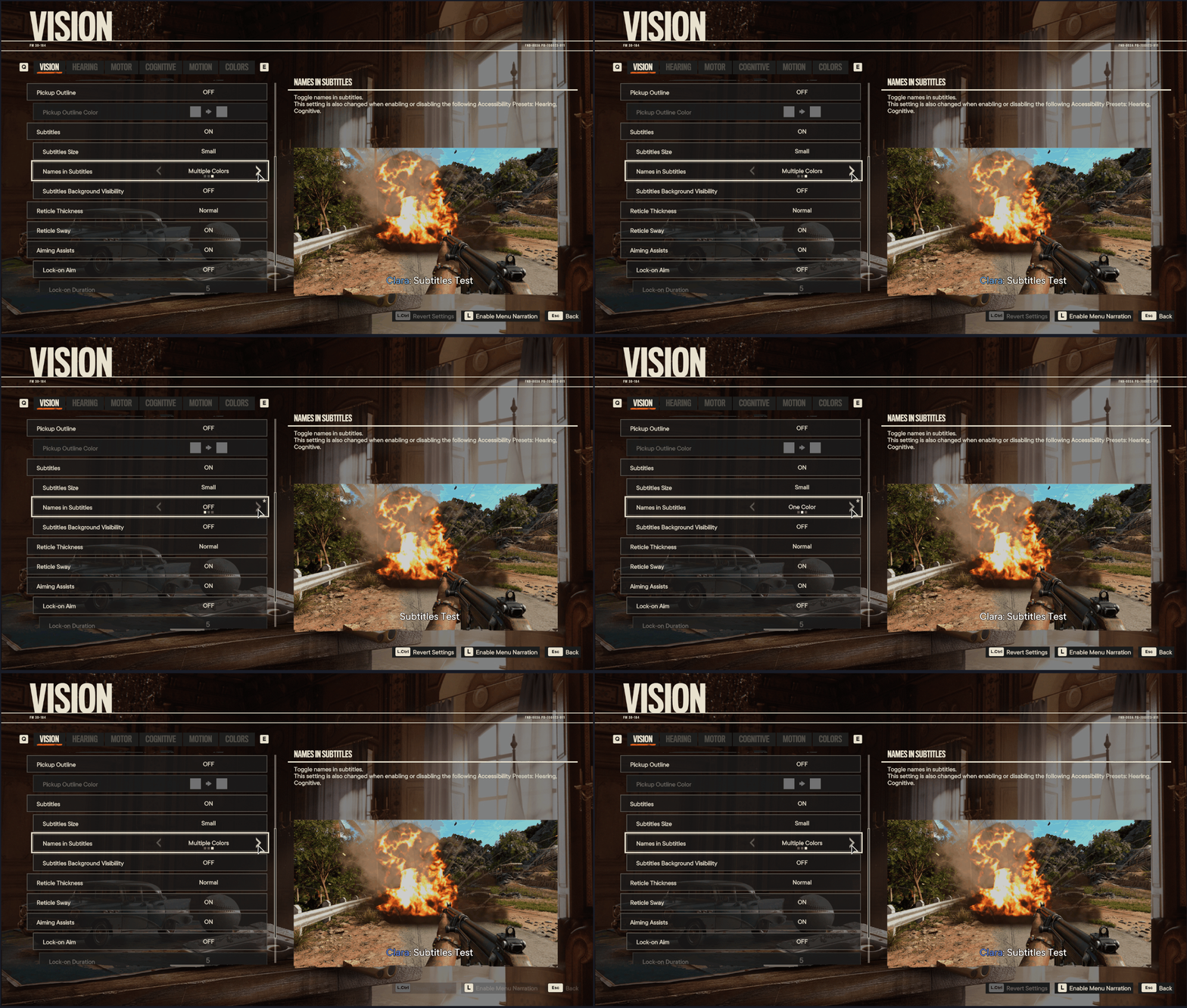
Vision Preset
Players are able to toggle the Vision Preset on or off as a whole category, or they are able to make selections on individual options. Players are also able to preview the changes within the accessibility menu before they are applied.
Vision Preset
Off (Default)
On (turns on the rest of the options within the Vision category)
Custom (appears when the player adjusts individual settings, can not be selected)
Menu Narration
Off
Speaker 1 (Female voice) (Default when Vision Preset is On)
Speaker 2 (Male voice)
Menu Narration Speed
Slow
Normal (Default when Vision Preset is On)
Fast
Menu Narration Volume (sliding scale)
80 (Default when Vision Preset is On)
UI and Fonts Scaling
Normal
Increased (Default when Vision Preset is On)
Enemy Outline
On (Default when Vision Preset is On)
Off
Enemy Outline Color
Opens Color Selector (Orange by default)
Pickup Outline
On (Default when Vision Preset is On)
Off
Pickup Outline Color
Opens Color Selector (White by default)
Subtitles
On (Default when Vision Preset is On)
Off
Subtitles Size
Small
Medium
Large (Default when Vision Preset is On)
Names in Subtitles
Multiple Colors (Default when Vision Preset is On)
Off
One Color
Subtitles Background Visibility
Off
Semitransparent
Black (Default when Vision Preset is On)
Reticle Thickness
Normal
Bold (Default when Vision Preset is On)
Reticle Sway
On
Off (Default when Vision Preset is On)
Aiming Assists
On (Default when Vision Preset is On)
Off
Lock-on Aim
On (Default when Vision Preset is On)
Lock on Duration (sliding scale)
10 (Default when Vision Preset is On)
Camera Shakes
Minimal (Default when Vision Preset is On)
Full
Poisoned and Drunk Effects
Off (Default when Vision Preset is On)
On


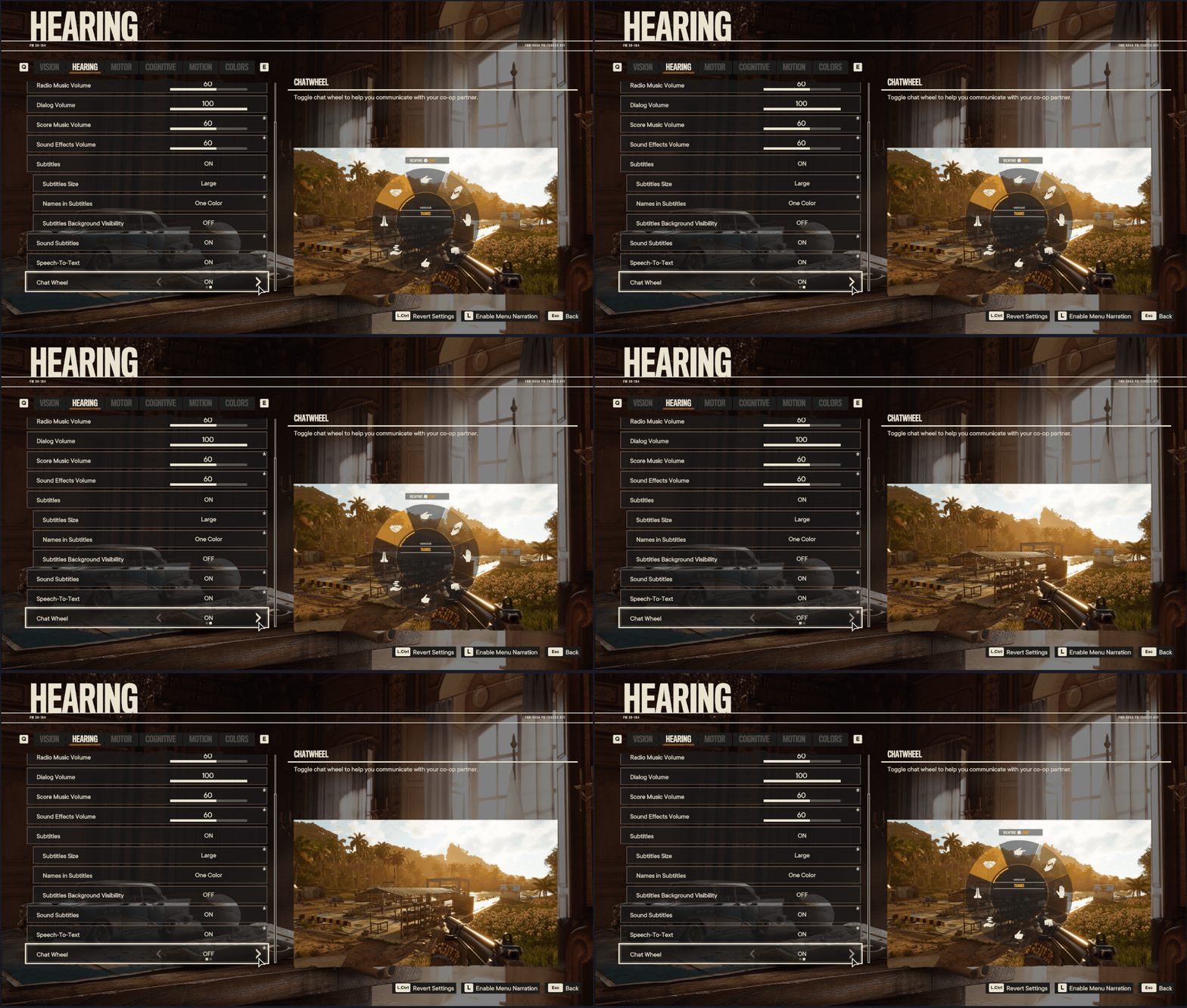
Hearing Preset
Players are able to toggle the Hearing Preset on or off as a whole category, or they are able to make selections on individual options.
Hearing Preset
Off (Default)
On
Custom (appears when the player adjusts individual settings, can not be selected)
Master Volume (sliding scale)
100 (Default when Hearing Preset is On)
Radio Music Volume (sliding scale)
60 (Default when Hearing Preset is On)
Dialog Volume (sliding scale)
100 (Default when Hearing Preset is On)
Score Music Volume (sliding scale)
60 (Default when Hearing Preset is On)
Sound Effects Volume (sliding scale)
60 (Default when Hearing Preset is On)
Subtitles
On (Default when Hearing Preset is On)
Off
Subtitles Size
Small
Medium (Default when Hearing Preset is On)
Large
Names in Subtitles
Off
One Color
Multiple Colors (Default when Hearing Preset is On)
Subtitles Background Visibility
Off
Semitransparent (Default when Hearing Preset is On)
Black
Sound Subtitles
On (Default when Hearing Preset is On)
Off
Speech-To-Text
On (Default when Hearing Preset is On)
Off
Chat Wheel
On (Default when Hearing Preset is On)
Off
Accessibility deck
These are a few slides from the deck I put together to present findings to the team.


XBOX Accessibility Essentials
This documentation consolidated pages of XBOX accessibility guidance into a more usable set of baseline requirements for design and development teams.
The XBOX Essentials were not required by law or required for launch, but were considered the minimum accessibility bar teams were encouraged to meet.
Last updated: March 25, 2026
Research data: December 13, 2023
Audio
Audio Customization
Players can focus on only the audio that is most important to their experience.
Baseline
User is provided with individual audio controls to adjust volume levels independently. We recommend at least:
- Narration Volume
- Chat Volume
- Music Volume
- SFX Volume
- Dialog Volume
Upgrades
Split SFX Volume into at least two separate controls:
- Ambient SFX (environmental, crowd noise, etc.)
- Gameplay SFX (footfalls, weapons, etc.)
| Tag | Percentage of Players | Importance |
|---|---|---|
| Volume Control | 65% | 2.5 |
| Mono, Stereo or Surround Sound | 36% | 2.3 |
Screen Narration
All players can perceive and understand in-game text.
Baseline
- Screen narration is supported for all UI menus (English only) to the quality bar defined in the XARs.
- Menu UI text and state changes moving between menus support the option to use screen readers that are available on the platform and/or voice out of the UI through a speech synthesizer.
- The title supports a focus order that's aligned with the meaning or operation of the UI.
- After a change in context has occurred, the user is notified via narration of the new context.
- All context changes are user initiated.
- Users are notified via narration of events that are relevant to user interactions (changes in component states, value, or description).
- All of the title's menu UI is narrated.
Upgrades
- Narration is supported for additional languages (recommended FIGS+ | FIGS = French, Italian, German, Spanish).
- Menu UI text and state changes moving between menus support the option to use screen readers that are available on the platform and/or voice out of the UI through a speech synthesizer (FIGS).
- The title supports a focus order that's aligned with the meaning or operation of the UI (FIGS).
- After a change in context has occurred, the user is notified via narration of the new context (FIGS).
- All context changes are user initiated (FIGS).
- Users are notified via narration of events that are relevant to user interactions (changes in component states, value, or description) (FIGS).
- All of the title's menu UI is narrated (FIGS).
| Tag | Percentage of Players | Importance |
|---|---|---|
| Narrated Gameplay | 16% | 2.2 |
| Narrated Menus | 10% | 2.8 |
| Text-to-Speech | 11% | 2.7 |
Spatial Audio
Players can use audio to orient themselves during gameplay.
Baseline
-
Titles supports stereo or 5.1/7.1 audio directionality for world positioned gameplay elements that are critical to understanding gameplay or understanding the narrative.
- Store Metadata (or confirmation via the studio) confirms that the title supports Dolby Atmos.
- The title provides an option to enable and disable spatial audio or utilizes platform-level settings to do so.
- Spatial audio includes sound effects, narration, and any other important game sounds that help the player determine the directionality of the audio.
Upgrades
- Support for spatial audio, which must support verticality (heigh channel information).
- Support for mono audio (can be configured at a platform level - games must add an option for platforms that don't support this natively).
| Tag | Percentage of Players | Importance |
|---|---|---|
| Mono, Stereo or Surround Sound | 36% | 2.3 |
Gameplay
Game Difficulty
Players can adjust difficulty to match their desired experience.
Notes
Multiplayer here refers to any multiplayer co-op or PvP.
Pausing means that the entire game is paused. The idea is that if someone needs to stop and take a break they are not penalized with negative consequences for needing to take the break.
Baseline
- Games can be paused at any point during gameplay or cinematics (Does not apply during multiplayer sessions).
Upgrades
- Game provides difficulty presets - at least 4 total where one of them is an ultra-low difficulty mode (example: Story Mode).
- Gameplay in each of the applicable game modes can be paused (Does not apply during multiplayer sessions).
- Cinematic in each of the applicable game modes can be paused (Does not apply during multiplayer sessions).
- Game provides the ability for players to independently adjust specific mechanics that affect the difficulty of the game.
- The game includes four or more difficulty levels.
- The game provides the ability for players to individually adjust specific mechanics that impact difficulty of the game.
- The game provides an ultra-low difficulty mode.
- The difficulty names are not insulting to the user (e.g. "Baby Mode," "Wimp Mode," etc.).
| Tag | Percentage of Players | Importance |
|---|---|---|
| Difficulty Settings | 71% | 2.4 |
| Tutorials & Training | 54% | 2.6 |
| Game Speed Options | 29% | 2.1 |
| Save Options | 70% | 2.9 |
Input
Input Adjustments
All players can play without blockers due to input requirements.
Baseline
- Input sensitivity is adjustable for all analog inputs, and each one can be adjusted independently (sticks, triggers, etc.).
- Player can configure controls to remove any required button hold actions (stick/dpad use for movement are exempt).
- An alternate experience is available for any Quick Time Events in gameplay.
Upgrades
- Player is able to configure controls to remove any repeated button tap actions.
| Tag | Percentage of Players | Importance |
|---|---|---|
| Cooperative Controls | 16% | 2.0 |
| Alternative Controllers | 20% | 3.0 |
Remappable Controls
Controls can be remapped so that all players are able to use the controls to play.
Baseline
Provide users with a method to customize the mapping of controls for all supported input devices.
- All gameplay actions can be remapped to alternate inputs.
- All gameplay actions can be mapped to digital or analog inputs.
- X-axis and Y-axis can both be independently inverted.
- UI prompts in-game reflect any user-customized controls.
Upgrades
- All buttons are available for remapping (includign the menu/view buttons on an XBOX Controller).
-
All UI actions can be remapped to alternate inputs.
- Exception: D-pad / LS to navigate, A to select, and B to cancel/go back are considered "standard" and do not need to be remappable.
- Exception: If additional inputs are option to navigate the UI they do not need to be remappable.
| Tag | Percentage of Players | Importance |
|---|---|---|
| Button Remapping | 46% | 2.6 |
UI Navigation
All players can navigate the UI.
Baseline
- UI focus is fully controllable using either analog or digital controls.
- UI is navigable using single, non-simultaneous button presses.
Upgrades
-
UI is navigable only using standard inputs (LS, A, B) (Arrow Keys, Enter, Esc).
- Exception: If all other inputs are remappable, they are acceptable.
| Tag | Percentage of Players | Importance |
|---|---|---|
| Adjustable UI | 35% | 2.4 |
Visual
Camera Adjustments
Camera can be adjusted to ensure that all players can play without discomfort.
Baseline
- The title’s gameplay does not include any camera shake or camera bobbing [or] an option must exist to turn off these behaviors.
- Option is provided to disable camera shake / bob (or there is no camera shake / bob by default) in all gameplay.
- Option is provided to disable motion blur (or there is no motion blur by default) in all gameplay.
- There is no motion blur or camera shake / bob in narrative critical cinematics or an option is provided to disable motion blur or camera shake/bob in those cinematics.
Upgrades
- Option is provided to remove or reduce "forced look" or non-player controlled camera movement in gameplay and cinematics.
- Option is provided to adjust Field of View (FOV).
- There is no motion blur or camera shake / bob in any cinematics or an option is provided to disable motion blur or camera shake/bob in all cinematics.
| Tag | Percentage of Players | Importance |
|---|---|---|
| Motion Sickness Options | 13% | 3.1 |
Captions
Narrative and gameplay critical sounds that are not captured by 2+ sensory methods are understandable for all players via the subtitling system.
Baseline
Any audio content that is critical to understanding gameplay or understanding the narrative that is not covered through 2+ sensory methods will have a text description available via the subtitling system in the game.
If the audio is already being presented through other on-screen visuals or haptics, captioning the audio is not required for the essential baseline.
- Captions can be set to at least 24px @1080p in all cases.
- Captions have a contrast of 4.5:1 in all cases.
- Captions clearly identify the source of the audio.
- Captions can be enabled before any content is presented to the user or are enabled by default.
- Captions are provided for all gameplay or narrative critical sounds.
- Captions use a sans-serif font and are presented in mixed-case or are configurable to this.
Upgrades
- Caption default text size is 26px @ 1080p.
- Caption text size can be scaled up to 200% from the default size.
- Caption background opacity can be adjusted up to 100% opaque.
- Caption text color and background is adjustable (ideally, per sound/caption class).
- Captions clearly identify the direction of the audio source.
| Tag | Percentage of Players | Importance |
|---|---|---|
| Audio Captions | 25% | 2.1 |
Multi-Sensory Support
All gameplay / narrative critical information is communicated through multiple senses.
Baseline
Any content that is critical to understanding gameplay or understanding the narrative must be color-blind friendly.
This can be achieved either by default — not using color to communicate critical elements / always providing secondary signifiers — or by:
- Providing an option to turn on additional signifiers (shapes, icons, patterns, etc.).
- Allowing the player to directly customize and configure colors used as signifiers.
- Providing preset color options for at least Protanopia, Deuteranopia and Tritanopia.
Upgrades
Any content that is critical to understanding gameplay or understanding the narrative must be communicated through 2+ sensory methods.
- Any information that is conveyed primarily through audio must also provide a visual reference (and/or haptic with a controller).
- Any information that is conveyed primarily through visuals must also provide an audio reference (and/or haptic with a controller).
| Tag | Percentage of Players | Importance |
|---|---|---|
| Colorblind options | 16% | 2.5 |
| Adjustable UI | 35% | 2,4 |
| Brightness, Gamma or Contrast | 61% | 2.7 |
Subtitles
Dialog is understandable for all players.
Baseline
- Subtitles can be set to at least 24px @1080p.
- Subtitle contrast is at least 4.5:1 in all cases.
- Subtitles clearly identify the speaker.
- Subtitles can be enabled before any content is presented to the user (or are enabled by default).
-
Subtitles are provided for all spoken content.
- For titles with extensive ambient dialog (crowd murmur, etc.) work with XGS accessibility to align on expectations.
- Subtitles use a sans-serif font and are presented in mixed-case (or are configurable to this).
Upgrades
- Subtitle default text size is 26px @ 1080p.
- Subtitle text size can be scaled up to 200% from the default size.
- Subtitle background opacity can be adjusted up to 100% opaque.
- Subtitle text color and background is adjustable.
| Tag | Percentage of Players | Importance |
|---|---|---|
| Subtitles | 68% | 2.3 |
UI Text Formatting
Players can easily read and comprehend all UI text.
Baseline
- All UI text can be set to at least 24px @1080p.
- All UI text meets a contrast ratio of 4.5:1.
- User is never required to scroll in multiple directions to read text (horizontal or vertical scrolling is fine, but not both).
Upgrades
- All UI Text uses a sans-serif font (or can be configured to use one).
- All UI default text size is 26px @ 1080p.
- All UI text can be scaled up to 200% from the default size.
| Tag | Percentage of Players | Importance |
|---|---|---|
| Adjustable UI | 35% | 2.4 |
General
Accessibility on First Launch
All game content including introductory content is accessible for all players.
Baseline
- Basic accessibility feature settings are available to the user as part of the initial launch flow.
-
Screen Narration (On/Off) - When possible the default should pull from the platform / profile setting ("Let Games Read to Me").
- The title prompts the user to configure Screen Narration settings at the first screen that appears after when the game launches, before the main menu.
-
Text scaling - If supported, users should be able to scale text size before getting to the Main Menu.
- The title prompts the user to configure Text Scaling settings (if supported) at the first screen that appears after when the game launches, before the main menu.
-
High Contrast - If supported, users should be able to select a high contrast mode before getting to the Main Menu.
- The title prompts the user to configure Text High Contrast settings (if supported) at the first screen that appears after when the game launches, before the main menu.
All accessibility settings should be available to the user before gameplay or critical narrative content. In particular:
- Input Remapping
- Subtitle / Caption Configuration
Upgrades
Consider adding additional accessibility options in the launch flow:
- Narration volume control.
- Subtitles On / Off.
-
Provide guidance to users that additional accessibility options are available.
- Example: offer a quick link to accessibility settings on the Main Menu.
| Tag | Percentage of Players | Importance |
|---|---|---|
| Brightness, Gamma or Contrast | 61% | 2.7 |
Marketing and Documentation
Teams communicate accessibility features clearly to players.
Baseline
- Mindful use of "Accessibility" as a word within marketing / documentation materials (vs. "Availability" or "Approachability").
- Set realistic expectations around accessibility (Example: "Everyone can play" may overstate capabilities).
- Clearly document Accessibility features, including descriptions and instructions for enabling.
Upgrades
- Clearly document all game options, including descriptions and instructions for enabling.
- Include Accessibility community when highlighting Accessibility features (influencers, press, etc.).
| Tag | Percentage of Players | Importance |
|---|---|---|
| Accessibility Documentation | 11% | 2.7 |
PlayStation Accessibility Guidelines
This documentation was created to make PlayStation accessibility guidance available in one consistent place for teams that needed the information but did not always have direct access to DevNet. Because PlayStation prohibits directly copying DevNet content, the guidance was reviewed, interpreted, and paraphrased into an internal reference that teams could use more broadly. The goal was to reduce access barriers, avoid duplicated interpretation work, and give teams a reliable place to understand the requirements.
All guidance on this page was paraphrased from PlayStation DevNet documentation. Content was not directly copied from DevNet.
Last updated: January 19, 2025
Audio
Volume Controls
The player can adjust individual audio channels and mute them completely.
- Dialog
- Music
- Sound Effects
- Screen Reader
- Voice Chat
Mono Audio
The player can set all audio to output through a single channel to all speakers.
- Player can use in-game settings or console-level settings to output audio through a single channel to all speakers.
3D Audio
The player can set audio to be output as spatial audio across three axes.
- 3D audio includes left, right, front, behind, above and below the player.
- Player can use in-game settings or console-level settings to output audio as spatial audio.
Screen Reader
Basic
- Screen reader helps the player begin the game and adjust settings, even if narration is not available throughout gameplay.
-
Game-critical visual information is narrated, including:
- First-time user experience navigation.
- Front-end and options menu navigation.
- Start, Save, Load and Quit options where applicable.
- Settings and preferences.
-
Narrated information should include:
- Screen titles, headings and subheadings.
- Name, role, state and value of focusable or selectable elements.
- Body text and descriptions.
- Informational images.
- Notifications, alerts and tooltips.
- Button prompts, keys and legends.
- Screen reader is enabled by default, or enabled by default during the first-launch accessibility flow.
Advanced
- Player-initiated transitions between screens or prompts are narrated.
- Automatic transitions between screens or prompts are narrated.
- Background updates and newly revealed information are narrated.
- Menus supporting screen narration can be fully navigated with buttons rather than analog sticks.
-
Game-critical HUD information is narrated, including:
- Player meters such as health or ammunition.
- Player status.
- Dialog choices.
- Button prompts.
- Interfaces such as weapon wheels and crafting menus.
- Tutorial information.
- Reminders, hints, tooltips, notifications and alerts.
Visual Cue Alternatives
-
Visual information is also communicated through audio or haptic feedback.
- Game-critical visual cues are paired with audio cues, sound effects or haptic feedback that communicates the same information.
- This requirement may be met through a player-enabled setting.
Gameplay
Adjustable Difficulty
Basic
- Players can play at a reduced level of challenge or difficulty.
-
At least one alternative to the default difficulty reduces overall challenge.
- Difficulty descriptions explain how the preset changes the experience.
- Difficulty can be changed without restarting the game from the beginning.
- Assist modes may qualify if they meaningfully reduce overall challenge.
Advanced
-
Player can reduce overall challenge through at least one of the following:
- Difficulty selection by mechanic.
- Custom difficulty using individual variables.
- Gameplay-critical assist presets.
Skippable Puzzles
-
Player has an option to skip individual puzzles or connected puzzle sequences.
- Skipping advances the player to the point directly following the puzzle.
- A summary of relevant narrative content is provided after the puzzle is skipped.
- Puzzle skipping may be enabled through settings.
Simplified Quick Time Events
Quick time events are actions requiring players to complete on-screen prompts within a time limit.
-
Player can reduce the level of challenge associated with quick time events by adjusting at least one of the following:
- Simplified required inputs.
- Reduced total number of inputs.
- Reduced number of different input types.
- Longer countdown or response time.
Game Speed
Basic
-
Player can adjust gameplay speed.
- Speed adjustments may activate automatically during certain actions.
- Speed adjustments may be manually triggered by the player.
Advanced
-
Player can customize gameplay speed through at least one of the following:
- A single slower gameplay option.
- A range of slower gameplay presets.
Control Reminders
-
Player can review input controls at any time through at least one method:
- View current input mappings during gameplay.
- Access input-control information through menus.
- See contextual control information during gameplay.
Tutorial Reminders
- Player can review tutorials again through menus or a specific accessible location in the game.
-
Tutorials provide contextual information explaining:
- Game rules.
- Mechanics.
- Systems.
- Input functionality.
Practice Mode
-
A specific environment allows the player to practice without consequences.
- The player can access the practice environment repeatedly.
- A stand-alone practice mode qualifies if players can return to it easily.
Game Pausing
-
Gameplay and cinematics can be paused at any time, excluding online play.
- The game remains paused until the player manually resumes.
Manual Saving
-
Player-created save points allow players to continue from where they left off.
- Manual save files remain distinct from auto-save files.
- Auto-save files must not overwrite manual saves.
Controls
Controller Remapping
Basic
-
Player can change controls through at least one of the following:
- An alternate preset control layout.
- Control remapping.
- Control iconography updates to reflect remapped controls.
- Console-level remapping alone does not qualify.
Advanced
-
All gameplay controls can be remapped.
- Analog-stick directions can be assigned independently where applicable.
- Motion-control and touch-pad mappings can be changed where applicable.
Adjustable Stick Sensitivity
Basic
- Player can adjust input sensitivity for at least one analog-stick axis.
Advanced
- Horizontal and vertical sensitivity can be adjusted independently for each analog stick.
- Adjustment range provides at least a 50% increase and 50% decrease from default.
- Optional: dead-zone customization.
- Optional: action-specific sensitivity where one stick controls multiple actions.
Adjustable Stick Inversion
Basic
- Player can invert at least one axis of at least one analog stick.
Advanced
- Horizontal and vertical movement can be inverted independently for each analog stick.
- Left stick X-axis.
- Left stick Y-axis.
- Right stick X-axis.
- Right stick Y-axis.
- Optional: dead-zone customization.
- Optional: action-specific sensitivity options.
Playable without Button Holds
-
Gameplay and menu navigation can be completed without requiring button holds.
- Applies to gameplay, cinematics and menu navigation.
- Requirement may be met by removing hold actions entirely.
- Requirement may also be met through alternate input options such as toggles or single presses.
Playable without Rapid Button Presses
-
Gameplay and menus can be operated without rapid, repeated or precisely timed button presses.
- Includes button mashing.
- Includes single timed inputs.
- Includes sequences of timed inputs.
- Alternate input actions may be provided.
- The challenge level of rapid-input sequences may be configurable.
Playable without Simultaneous Presses
-
Gameplay and menus can be used without pressing or holding multiple buttons simultaneously.
- Alternate inputs such as single presses, toggles or single holds may be used.
Playable without Motion Controls
-
Gameplay and menu navigation can be completed without motion controls.
- No motion controls are required, or
- Motion controls can be disabled, or
- Alternate inputs are provided.
Playable without Touch Controls
-
Gameplay and menu navigation can be completed without touch-based controls.
- Touchpad button clicks are exempt because they function as button presses.
- Touch controls may be disabled.
- Alternate analog-stick, button or motion-control inputs may be provided.
Playable without Controller Vibration
-
Game-critical information can be obtained without haptic feedback.
- The game may avoid haptic feedback entirely.
- Players may disable haptic feedback.
- Console-level vibration settings should be respected.
- Alternate visual or audio feedback may be provided.
Playable without Adaptive Trigger Effect
-
Gameplay and menus can be used without adaptive trigger resistance.
- Game-critical information remains available without trigger resistance.
- Critical half-press actions can be remapped where applicable.
- Adaptive trigger effects can be disabled.
- Console-level Trigger Effect Intensity settings should be respected.
- Alternate inputs can be provided.
Visual
Clear Text
-
Text readability is supported through font size, contrast and font style.
- Minimum font size: 26px at 1080p / 52px at 4K.
- Text may meet the minimum by default or through player scaling options.
- Text must not truncate or overflow when scaled.
- Higher resolutions should scale appropriately.
- Minimum contrast ratio is 4.5:1 for game-critical information.
- Game-critical information uses a non-decorated sans-serif font.
- Italic and bold styling may still be used for emphasis.
- Fonts that do not display clearly on a television or monitor should be avoided.
Large Text
-
All text can be displayed at a larger size.
- Minimum large-text size: 38px at 1080p / 76px at 4K.
- The minimum may be met by default or through scaling options.
- Text must not truncate or overflow when enlarged.
- Higher resolutions should scale appropriately.
Color Alternatives
- Players do not need to rely on color alone to understand game-critical information.
- Players may be able to customize important colors.
-
Game-critical information includes secondary visual signifiers such as:
- Text.
- Icons.
- Shapes.
- Patterns.
-
Color-dependent information uses clearly distinguishable colors.
- Alternate palettes may support deuteranopia, protanopia, tritanopia and monochromacy.
- Custom color selection may be provided.
- Shading or outlines may be provided.
- Full-screen color filters do not qualify for this requirement.
High-Contrast Visuals
-
Game-critical elements have increased visual prominence against the environment.
- Higher contrast may be provided by default.
- Players may customize environmental saturation.
- Shaders, layers or borders may be applied to important elements.
- This requirement applies to gameplay; cinematics are exempt.
Visual Comfort
Basic
- Player can experience the game without camera movements or effects that may cause visual discomfort.
-
Players can disable or adjust effects including:
- Motion blur.
- Screen shake.
- Camera bobbing.
- Camera sway.
- Full-screen status effects.
- These options should be available during gameplay where possible.
Advanced
-
Player can enable a persistent visual reference in the center of the screen.
- Dot.
- Reticle.
- Crosshair.
- Other visual effects can be disabled or reduced where possible.
Audio Cue Alternatives
- Game-critical audio is accompanied by visual or haptic feedback that communicates the same information.
- This may be enabled by default or through player settings.
Directional Audio Indicators
-
Visual elements indicate the relative direction of game-critical audio.
- Directional indicators may be enabled by default.
- Players may enable directional arrows or visualized audio cues.
Subtitles & Captions
Playable without Subtitles
- The game can be played without subtitles when there is no spoken dialog.
- This applies to gameplay and cinematics.
Subtitles
Basic
- Game-critical dialog from main characters is subtitled.
- Applies to gameplay and cinematics.
- For single-player, the requirement applies to critical-path story dialog.
- For multiplayer, voiced lines providing important information or context are subtitled.
- Subtitles may be enabled by default or enabled by the player.
Advanced
- All dialog in the game has subtitles.
-
Speaker identification is provided through methods such as:
- Speaker names.
- Portraits.
- Dialog colors.
- If color is used for speaker identification, another identification method is also provided.
- When many voices overlap, the most game-critical dialog is prioritized or condensed.
Clear Subtitles
- Subtitle font size is at least 32px at 1080p / 64px at 4K.
- Font size, contrast and font style support readability.
- Players may use options to reach the required readability minimum.
- Subtitles use a non-decorated sans-serif font.
- Text must not truncate or overflow when resized.
- Higher resolutions should scale appropriately.
Large Subtitles
- Large subtitle font size is at least 48px at 1080p / 96px at 4K.
- Minimum size may be met by default or through player settings.
- Text must not truncate or overflow when resized.
- Higher resolutions should scale appropriately.
Captions
Basic
- Game-critical sounds have captions during gameplay.
- Captions are enabled by default or can be enabled before gameplay begins.
-
Captions include:
- Sound effects.
- Environmental sounds.
- Non-text visuals may supplement or replace text where appropriate.
- Captions are descriptive enough to distinguish important sounds from one another.
Advanced
- All game sounds are captioned.
-
Includes:
- Tone of voice.
- Non-verbal character sounds.
- Sound effects.
- Environmental audio.
- Music tone.
- Artist and song name for licensed music.
- Tone-of-voice and non-verbal captions appear with associated subtitle text where appropriate.
Clear Captions
- Caption font size is at least 32px at 1080p / 64px at 4K.
- Font size, contrast and font style support readability.
- Text does not truncate or overflow when resized.
- Higher resolutions scale appropriately.
- Minimum contrast ratio is 4.5:1.
- Captions use a non-decorated sans-serif font.
-
Applies to:
- Captions displayed with subtitles.
- Captions displayed separately elsewhere on screen.
Large Captions
- Large caption font size is at least 48px at 1080p / 96px at 4K.
- Minimum size may be met by default or through player settings.
- Text does not truncate or overflow when resized.
- Higher resolutions scale appropriately.
- Applies to captions appearing with subtitles or in separate caption areas.
Online Communication
Text Chat Transcription
- Text-based communication is simultaneously output through text-to-speech.
- Console-level Chat Transcription can qualify when communication uses the console chat system.
Voice Chat Transcription
- Voice-based communication is simultaneously output through speech-to-text.
- Console-level Chat Transcription can qualify when communication uses the console chat system.
Quick Chat
- Players can communicate using predefined words, phrases or icons without needing voice or text-entry communication.
- Quick-chat communication is conveyed both visually and through audio.
Ping Communication
- Players can communicate through a ping system without voice or text entry.
-
Players can mark:
- Points of interest on the HUD.
- Points of interest on maps.
- Specific objects.
- Ping communication is conveyed visually and through audio.
- Character dialog associated with pings is subtitled.
-
Contextual information is included when needed to clarify the meaning of a ping, such as:
- Presence of ammunition.
- Type of ammunition.
- Defend instructions.
- Location information.