TYPE RAMP TOOL FIGMA PLUGIN
Generate Figma comps from a Text Ramp Planner export. The plugin can apply the recommended type sizes to a selected comp, with an optional layout-adjustment pass.
TL;DR
The plugin is currently distributed as a local Figma development plugin rather than through the Figma Community. Installation takes a few manual steps the first time.
- Download and unzip the plugin.
- In the Figma desktop app, open a design file.
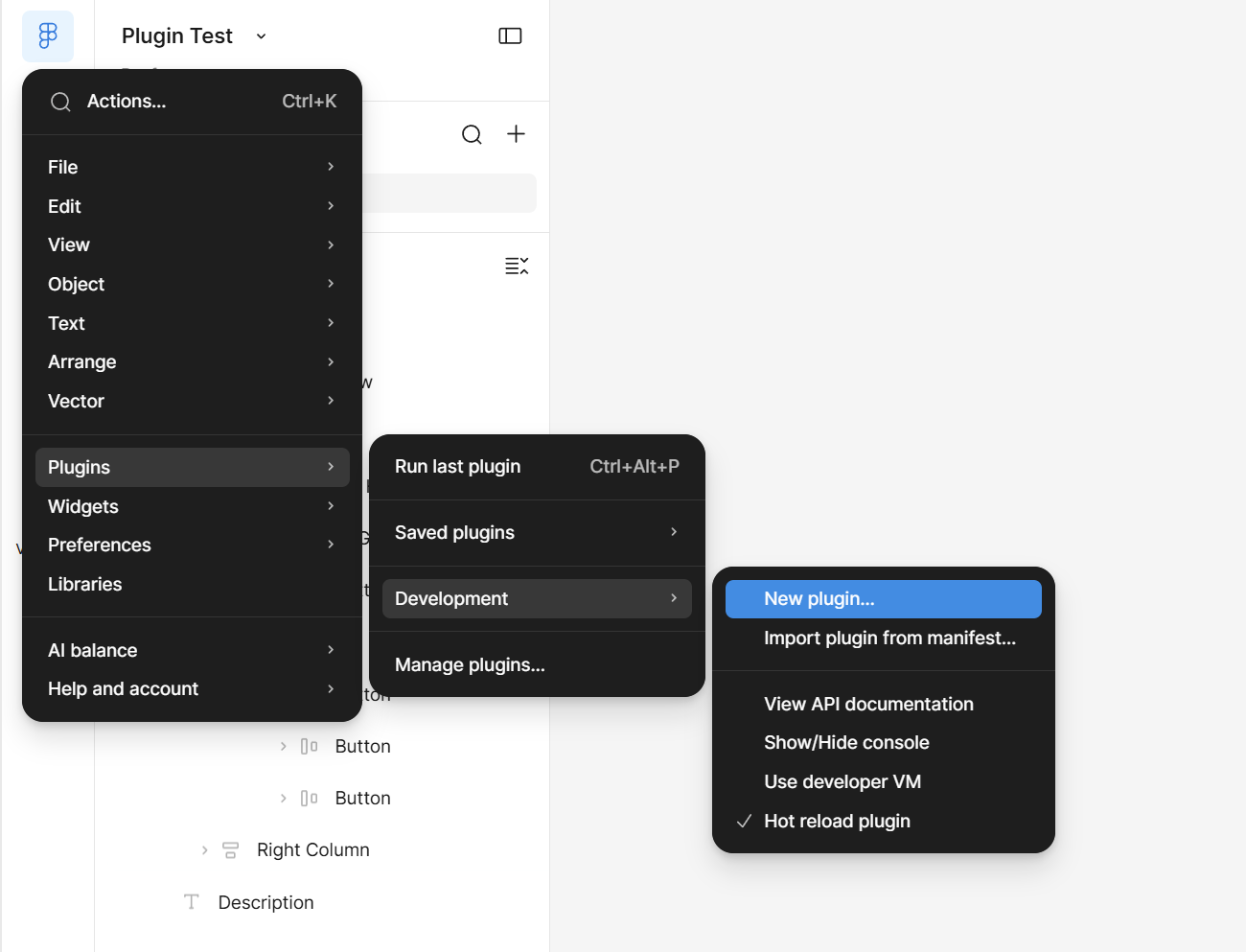
- Go to Plugins → Development → New Plugin.
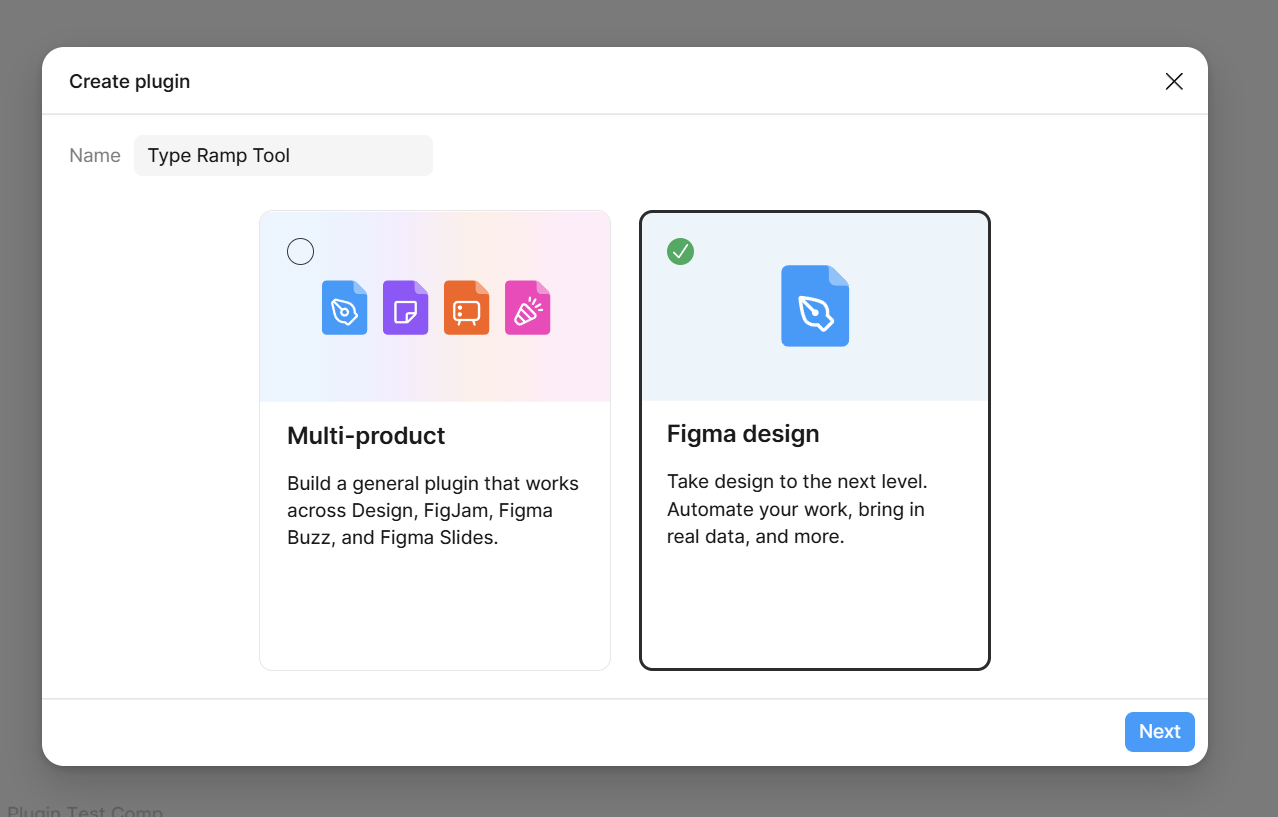
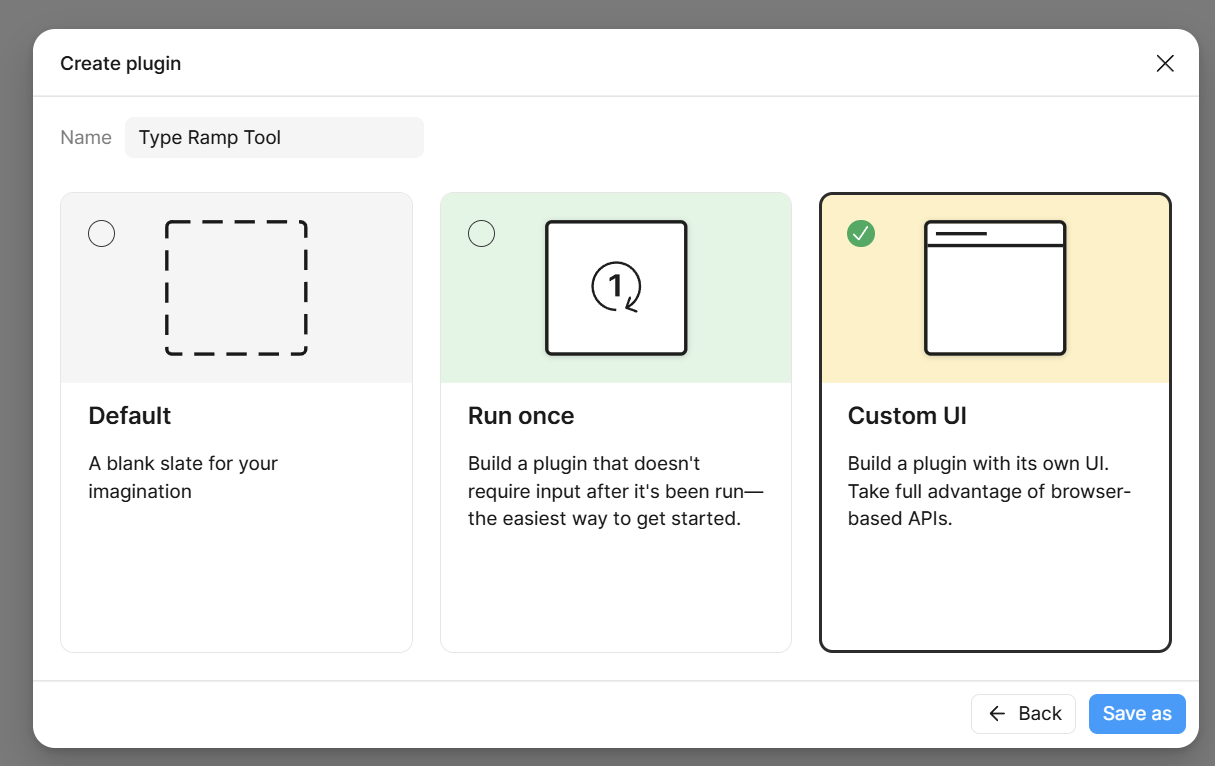
- Choose Figma Design → Custom UI and create a temporary development plugin.
- Open the manifest.json Figma creates and copy its "id" value.
- Open the downloaded Text Ramp Planner plugin's manifest.json and replace its placeholder "id" with the Figma-generated ID.
- In Figma, go to Plugins → Development → Import plugin from manifest and select the edited Text Ramp Planner manifest.
- The plugin will now appear under Plugins → Development.
Select a comp, run the plugin, and load the
.tokens.json downloaded from Text Ramp Planner.
INSTALLING THE PLUGIN
Create a temporary plugin in Figma
In the Figma desktop app, open any design file and go to:
Plugins → Development → New Plugin
Choose Figma Design, then select Custom UI when Figma asks which type of plugin to create.
Give the temporary plugin any name. Its purpose is simply to have Figma generate a valid local development-plugin ID.
Open Figma's generated manifest
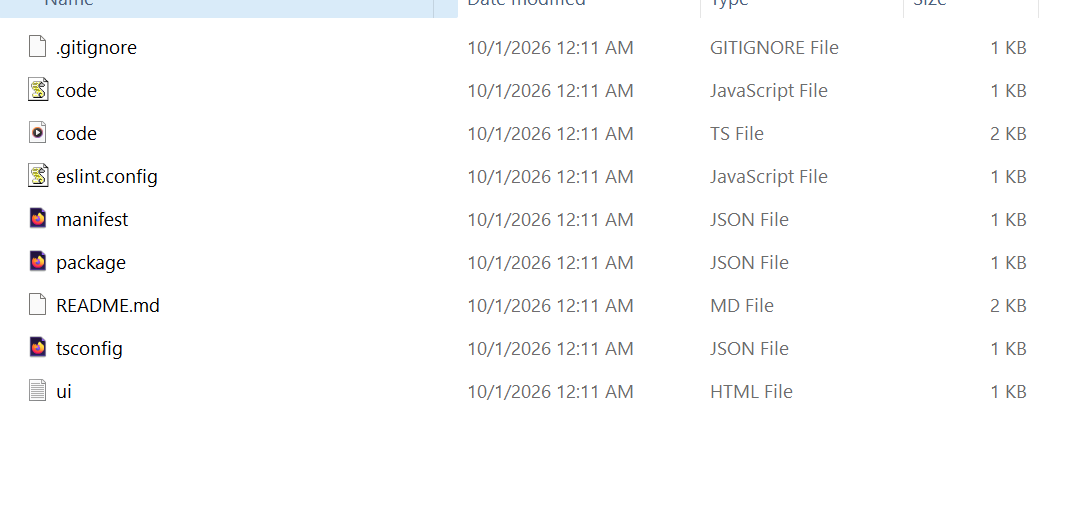
Figma creates a starter plugin folder containing several files.
Open that folder and locate manifest.json.
Open manifest.json in a plain-text or code editor. Near the beginning of the file will be an entry containing the development plugin's ID.
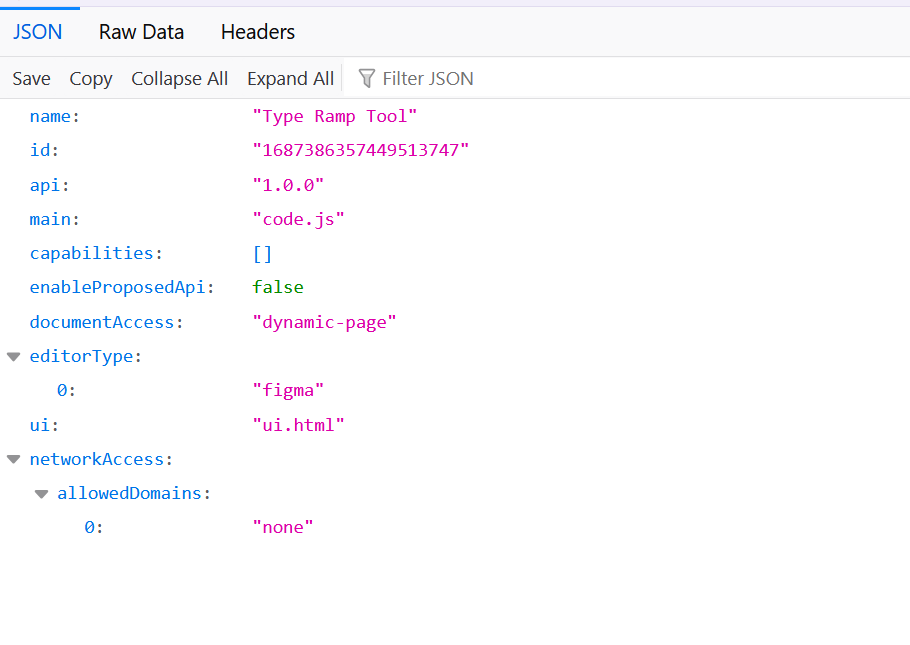
Copy only the value inside the quotation marks. The rest of Figma's generated starter files will not be used.
Paste the Figma ID into the downloaded plugin
Download and unzip the Text Ramp Planner Figma Plugin.
Inside that downloaded folder, open its manifest.json.
Find the placeholder "id" value and replace it with the ID copied from Figma.
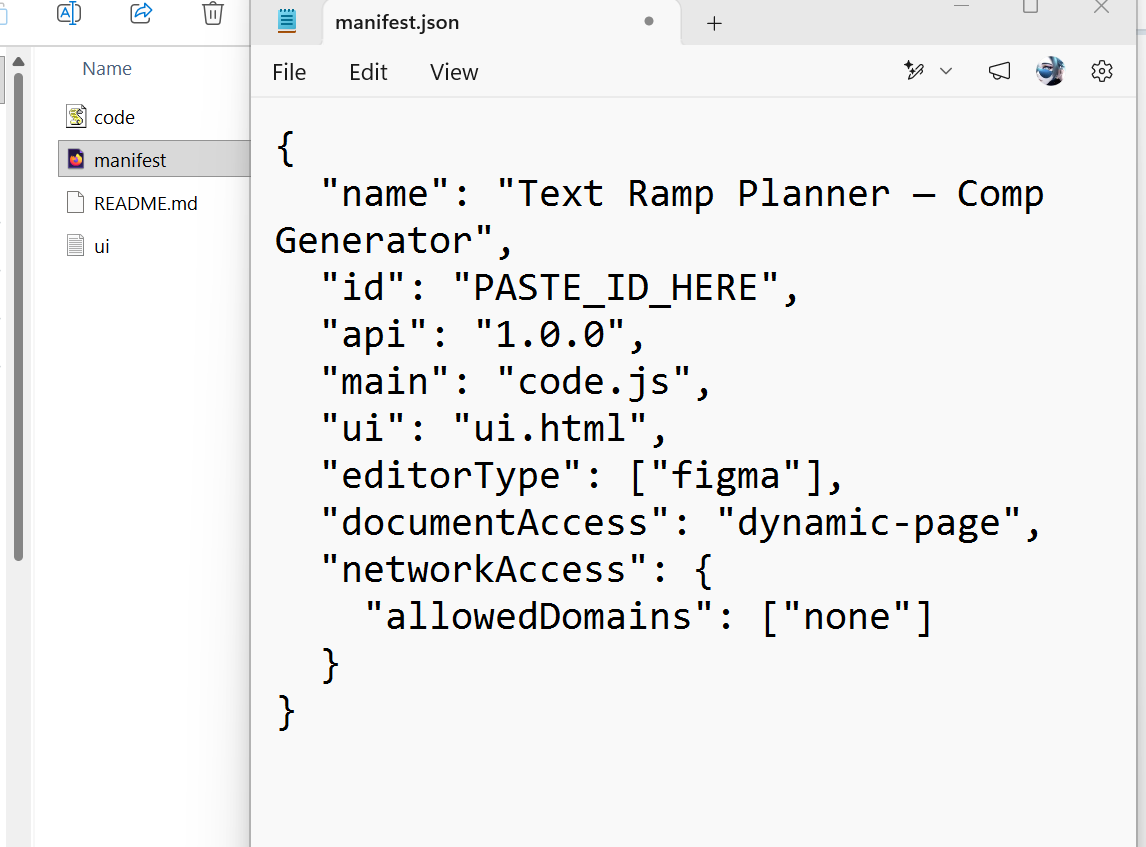
The downloaded file may begin with something similar to:
Replace only the placeholder value:
Replace only the text between the quotation marks and save the file.
Import the edited plugin into Figma
Return to Figma and choose:
Plugins → Development → Import plugin from manifest
Select the edited manifest.json from the downloaded Text Ramp Planner plugin folder.
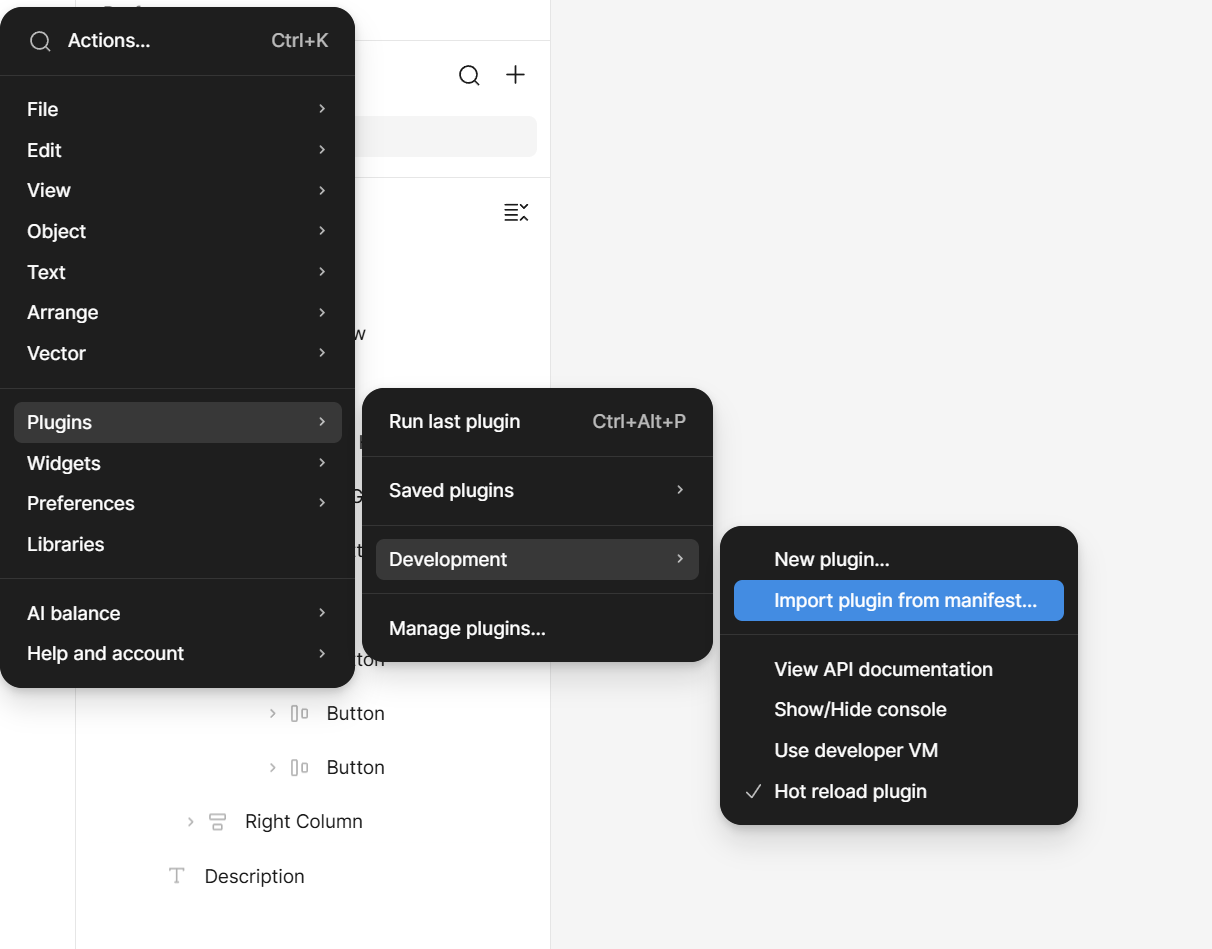
Use the edited manifest from the downloaded Text Ramp Planner folder, not the temporary starter-plugin folder created earlier.
GENERATE COMPS FROM THE PLUGIN
Once the plugin is installed, a Text Ramp Planner export can be loaded into Figma and used to generate a set of test comps across the selected resolutions and ramp stops.
Select a comp and open Text Ramp Planner
Select the Figma frame, component, instance, or group that will be used as the source comp.
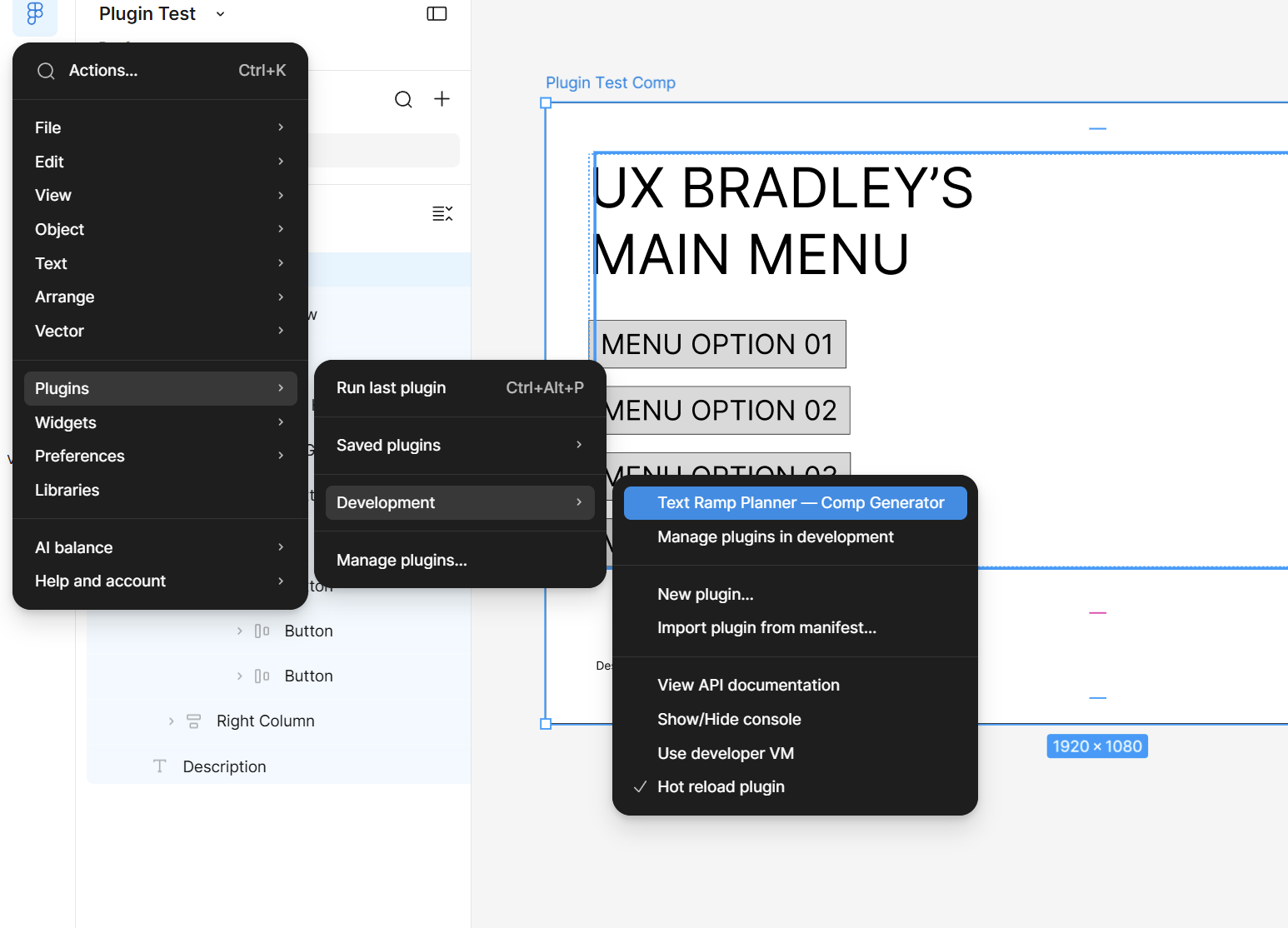
Open the development plugin from:
Plugins → Development → Text Ramp Planner
The selected comp becomes the source used to generate the additional resolution and scale-stop versions.
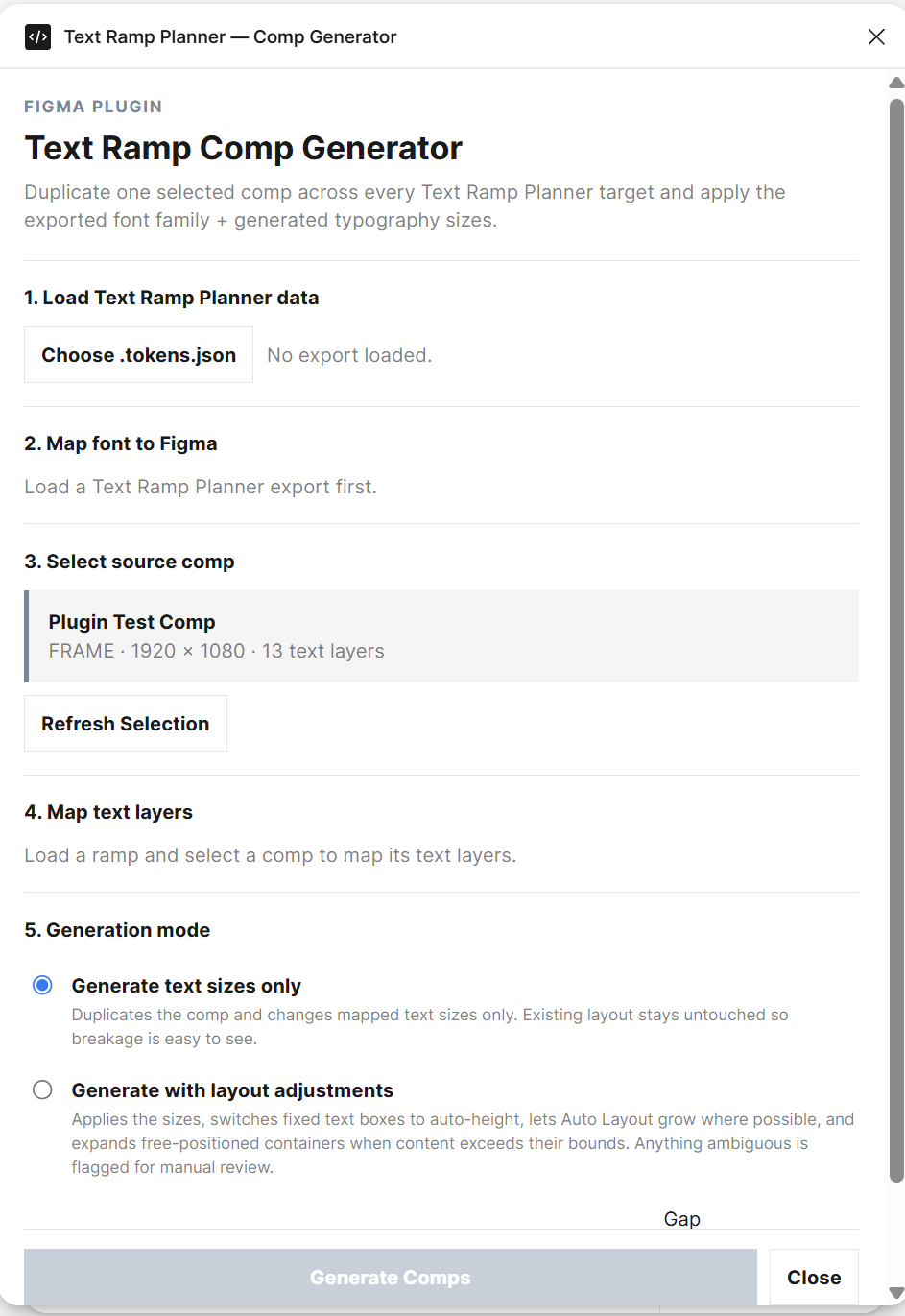
Import the Text Ramp Planner export
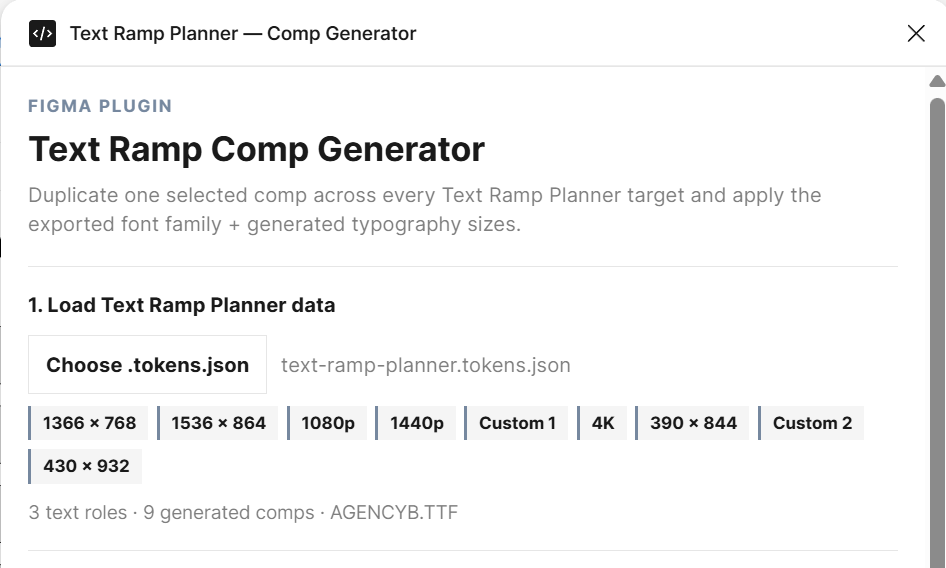
Use the .tokens.json file exported from the Text Ramp Planner.
Load that file into the plugin. It contains the generated type sizes, text-style roles, ramp columns, resolution information, custom scale stops, and font information needed to build the comps.
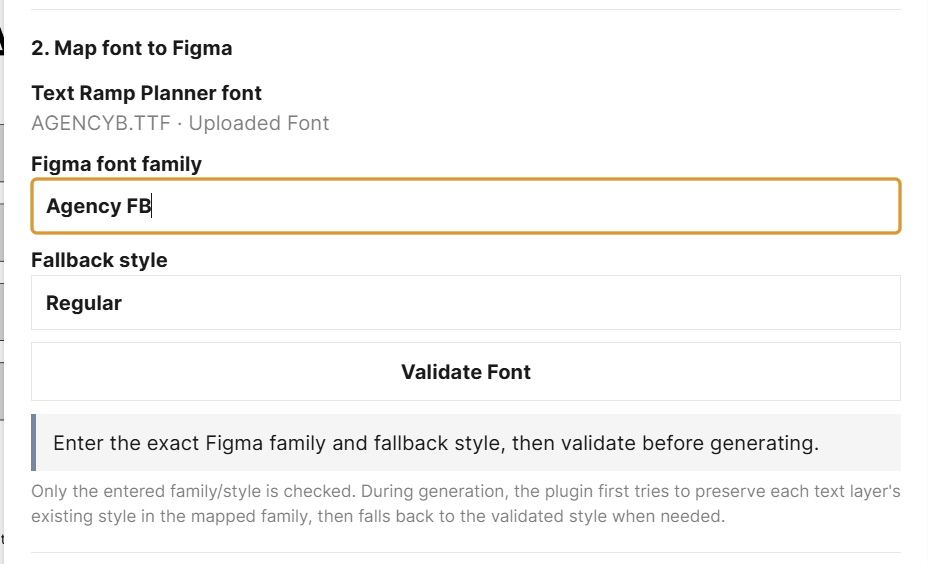
Match the exported font to the Figma font
Enter the exact font family name used by Figma and choose the appropriate fallback style.
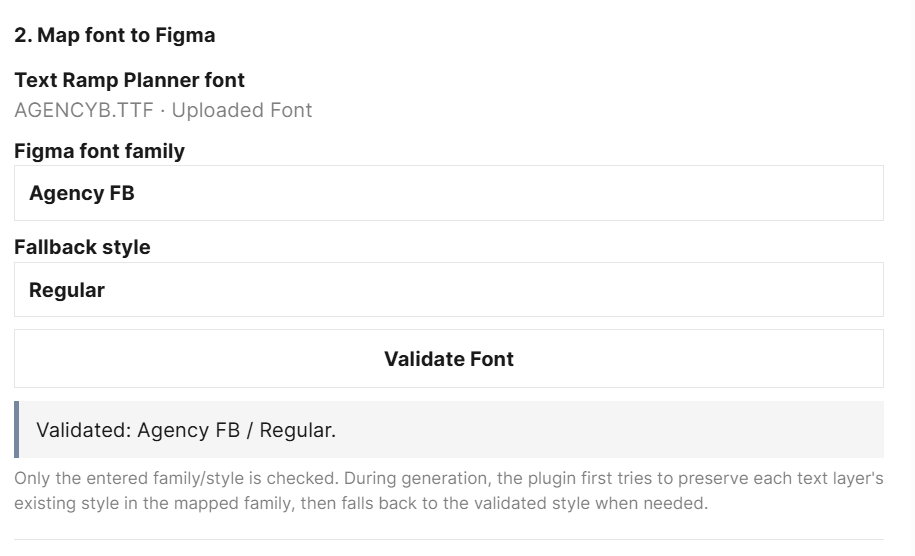
Select Validate Font before generating comps. This confirms that Figma can load the font that will be applied to the generated text.
This step is especially important for locally installed or uploaded fonts, where the filename and the font-family name may not match.
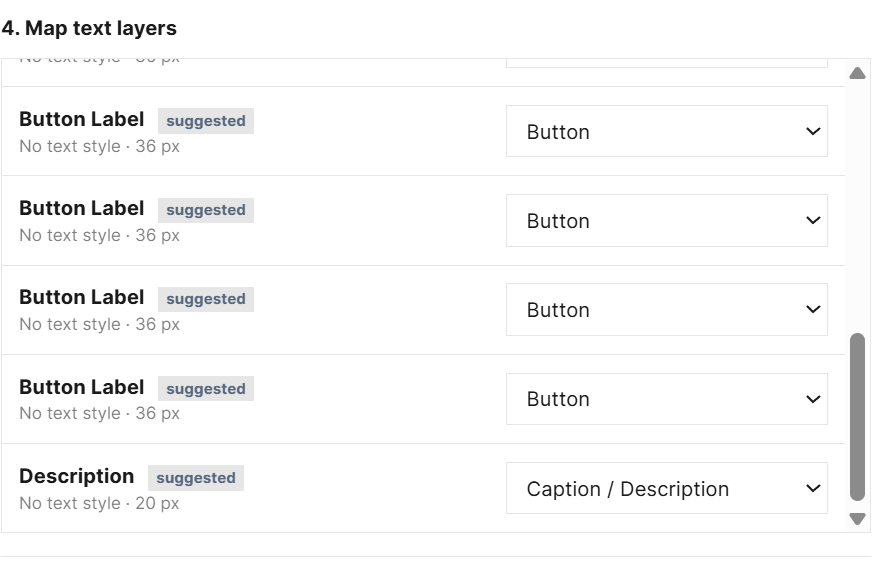
Match text layers to the type-ramp roles
The plugin scans the selected comp and attempts to match its text layers to the roles included in the Text Ramp Planner export.
Review the mappings and adjust any that need correction. Individual text layers can also be ignored when they should not be changed.
Choose how the generated comps should behave
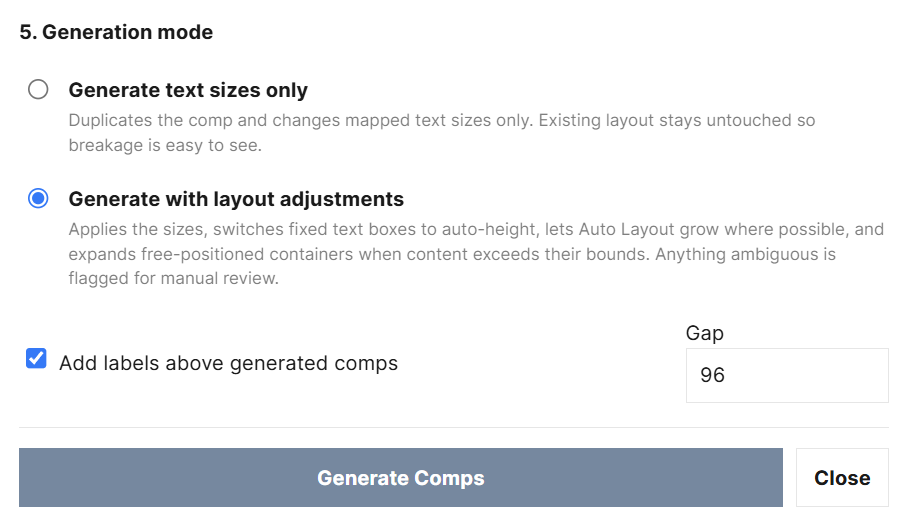
Select one of the two generation modes:
Generate text sizes only applies the exported type sizes while otherwise preserving the existing layout. This is useful for exposing wrapping, clipping, and spacing problems.
Generate with layout adjustments applies the type ramp and makes conservative layout changes intended to accommodate the resized text.
Generate the complete type-ramp set
Generate the comps to create a duplicate of the source design for each resolution or custom ramp stop included in the Text Ramp Planner export.
Real resolution targets use their corresponding frame dimensions. Custom ramp stops use their generated typography scale without inventing an additional platform resolution.
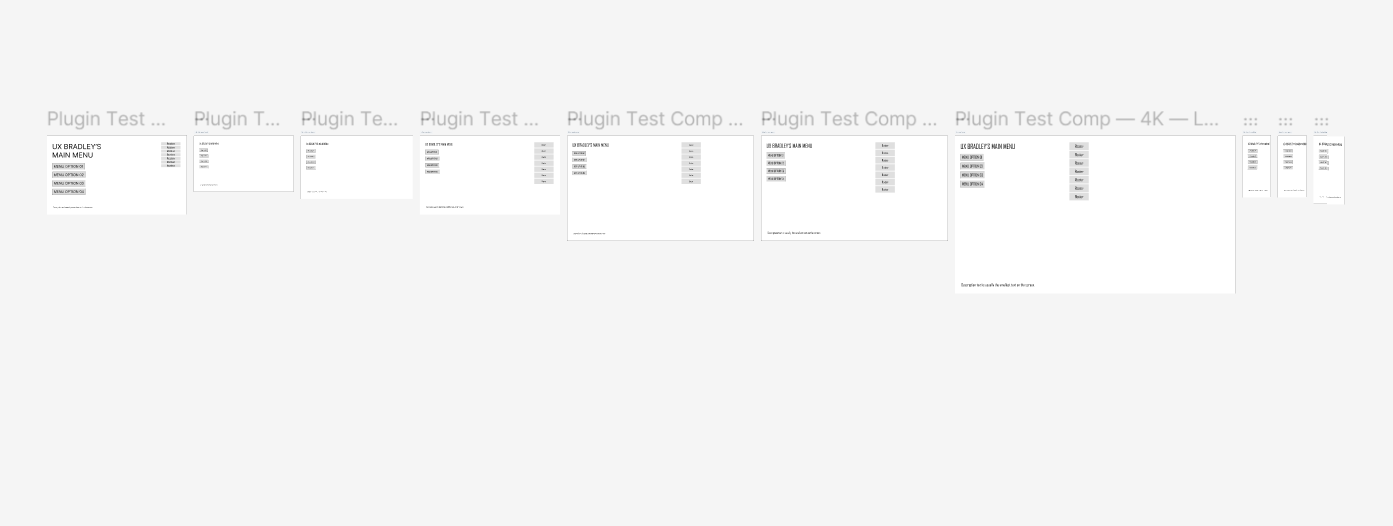
This is still rough and experimental — but it does, in fact, kinda work. Generated comps are intended as a fast starting point for testing type across resolutions, not finished production layouts. Some layouts will still need manual review and cleanup.